
In this post, I am sharing my own compilation of useful keyboard shortcuts for Revit. They’ll save you a lot of time.
In article “Revit shortcuts”:
Why you should use shortcuts?
If you haven’t used keyboard shortcuts in Revit yet (and other programs as well?), I encourage you to start. I can’t imagine working without using keyboard shortcuts in such a complex program as Revit. The multitude of options and windows overwhelms you from the very beginning, and digging through the settings takes a lot of time. However, when using a shortcut, we can use the function after pressing two or three keys. So little, and we avoid the tedious search for a specific function. It’s a time saver, especially since Revit offers the ability to add your own shortcuts.
Content description of Revit shortcuts
The list of shortcuts is on one A4 sheet. Most of the shortcuts are default, but I’ve included a few of my own. Keyboard shortcuts are divided by tabs in the program so you can easily find them on the bar. If you have any questions or suggestions about the content, feel free to leave a comment.
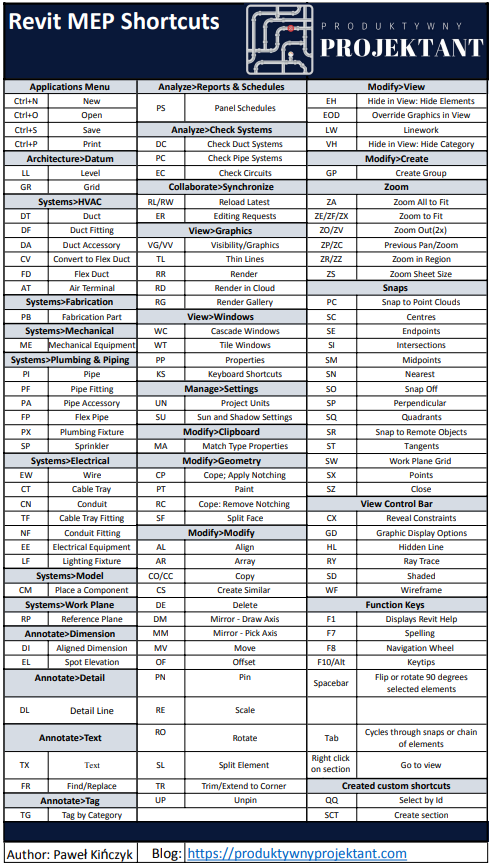
Document structure
The functions are thematically divided into ribbons with short descriptions. I am sharing them with you in two forms. The first is excel, which you can download and adjust the list for yourself. The second is a pdf sheet that you can download and start working with shortcuts right now.
Files to download
File in excel excel link
File in PDF to print link
See also:
- Revit connect pipes
- Air calculator
- Revit shortcuts
- Dynamo – locating elements in spaces
- Revit pipes type change