
A case study: several mailboxes in one Thunderbird profile, with AI triage, filters and a searchable archive instead of five open tabs.
Introduction
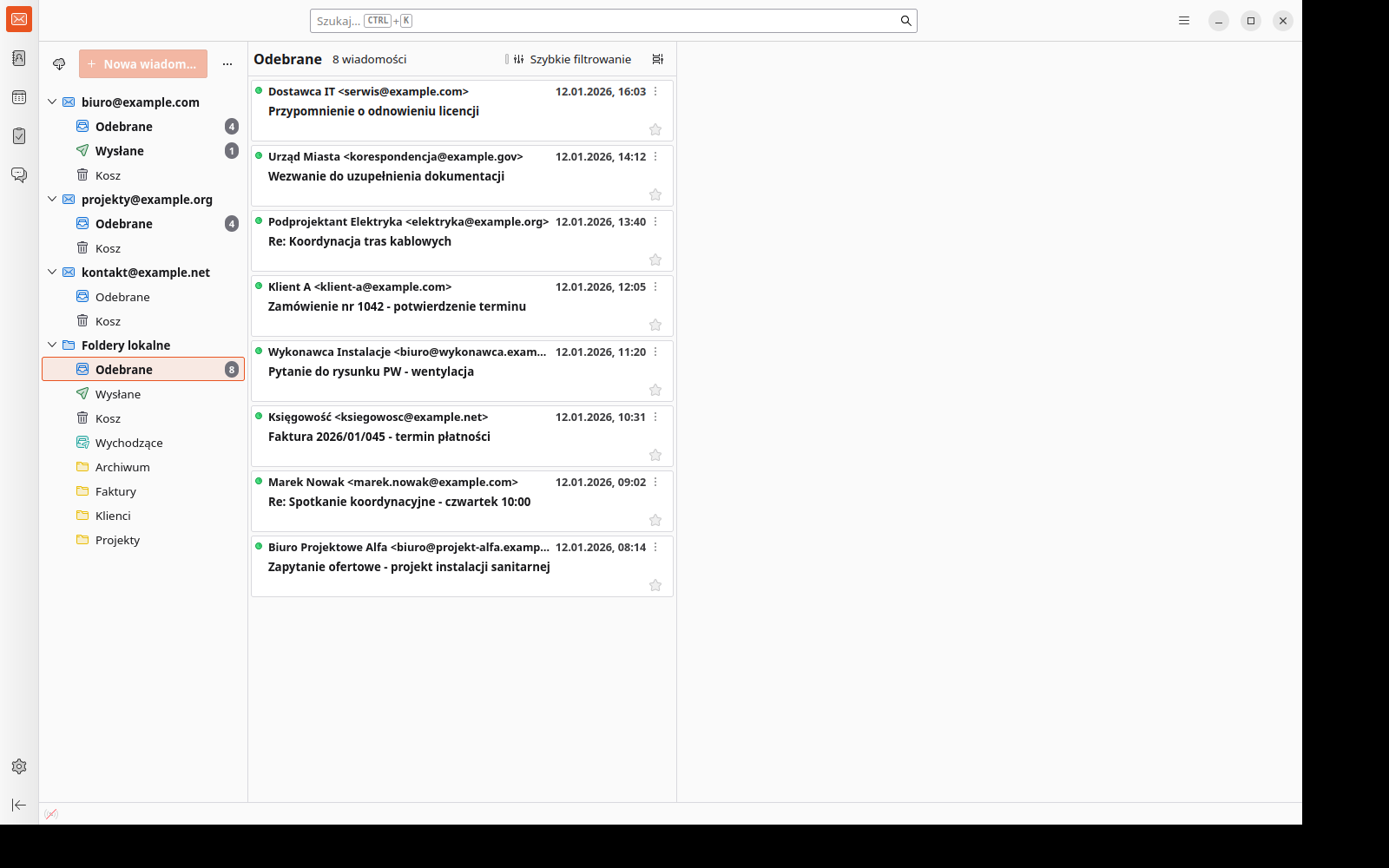
In this article, I show a real-world implementation of a system for managing multiple mailboxes using the Thunderbird email client.
The goal was to organise several email accounts and create one consistent working environment that works on both macOS and Windows.
Marek (name changed), an engineer who works on Mac and Windows, asked me to organise his email system. He used several mailboxes and wanted to create one consistent system for managing his email.
With several accounts, checking messages, managing correspondence and switching between different systems started taking more and more time. In addition, message rules, spam filters and folder structures worked separately for each mailbox, making it harder to keep messages organised.
The result was growing email chaos and extra time spent sorting messages by hand.
The goal of the implementation was to create one stable email system that would make it possible to:
- manage all mailboxes in one place
- sort messages automatically
- make working with email simpler
- standardise email across macOS and Windows devices (by exporting settings)
- use language models to work with email without the risk of data leaks
The initial situation
Before the implementation, Marek used several different email clients and web interfaces.
This caused several problems:
- having to switch between mailboxes
- no consistent rules across all accounts
- difficulty managing incoming correspondence
- no single, consistent way of working
Using two Mac computers and a Windows computer added another complication.
Why Thunderbird?
There are many email clients on the market, but Thunderbird has several features that make it very suitable for working with multiple mailboxes:
I show how to bring all your mailboxes together in one place in this video:
- it is free and open source
- it works on Windows, macOS and Linux
- it supports multiple accounts in one interface
- it has an advanced system of message filters and rules
- you can extend its functionality with add-ons
- it can integrate with AI tools
This makes it possible to build one consistent email management system instead of using several separate applications or web interfaces.
If you are just getting started and want to see the setup first, I described it step by step in the post “Thunderbird in 30 minutes: how to tame email chaos and regain control”.
Analysing requirements
The first step was a meeting where we discussed in detail how he had been working with email up to that point.
We talked, among other things, about:
- the tools he currently uses
- the features he considers most important
- what works well in the current solutions
- the areas that cause the most difficulty
We also placed a strong emphasis on the possibility of using language models (LLMs) to work with email.
Proposed solution
Based on our conversation, I proposed implementing a single email client to handle all the mailboxes: Thunderbird.
This solution makes it possible to:
- handle multiple mailboxes in one place
- create advanced message rules
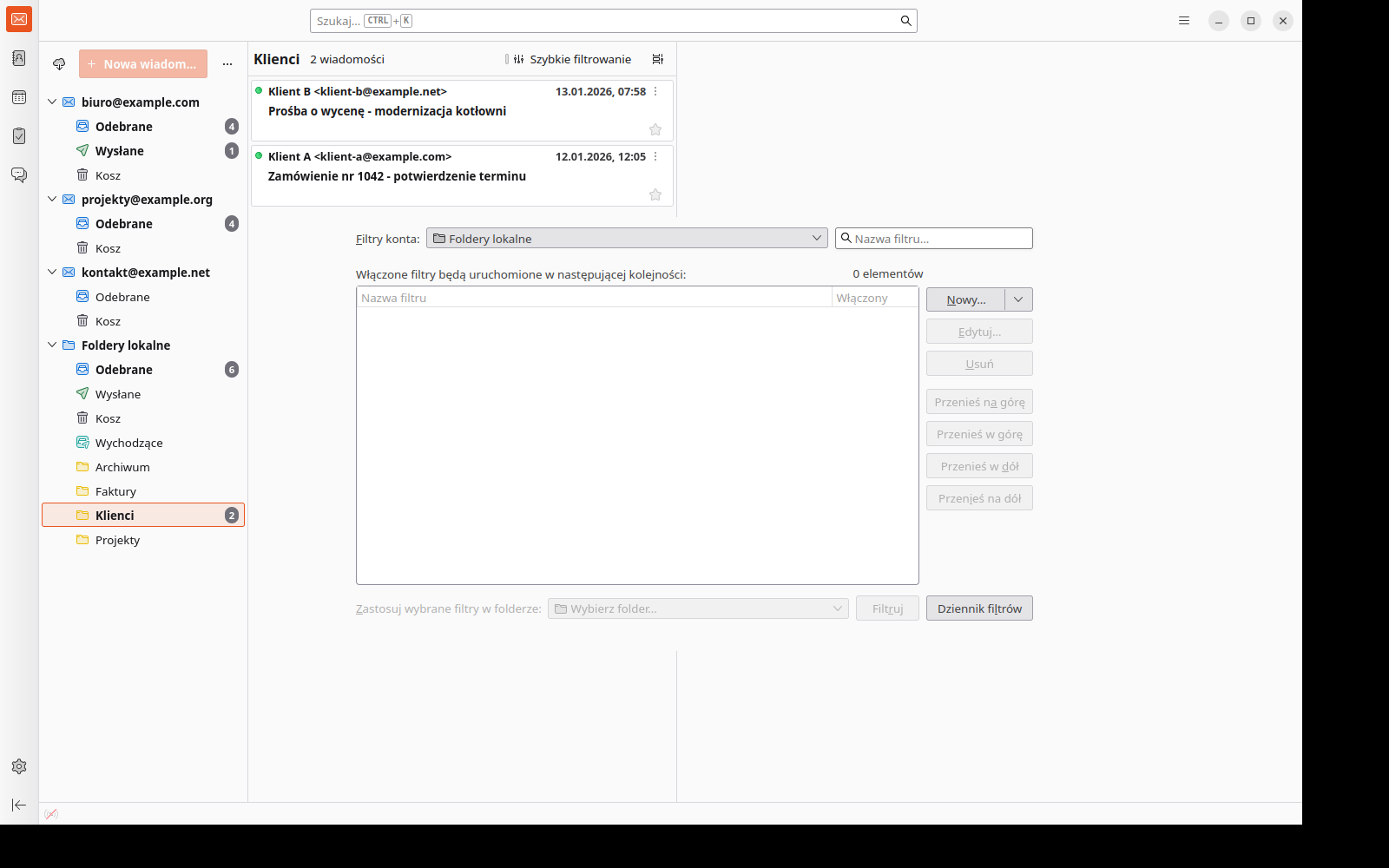
- manage folders and filters
- use add-ons to extend functionality, including AI add-ons
During the meeting, I also showed an example configuration on my own computer so the client could see what day-to-day work with such a system looks like.
We also discussed how to move the configuration between computers, since he uses two different operating systems.
Preparing for implementation
Before the actual implementation, I prepared instructional materials in the form of a PDF guide.
This meant Marek could configure access to his mailboxes himself without sharing passwords or private correspondence. This approach preserved his privacy and allowed us to focus on the specifics at our next meeting.
The first implementation meeting
During the first online implementation meeting, I showed him step by step how to configure his working environment in Thunderbird.
We covered, among other things:
- configuring email accounts
- customising the interface
- creating rules and filters
- organising folders
- integrating the calendar
The entire meeting was recorded and shared with Marek so that he could return to the material at any time.
The system adjustment period
After the first meeting, Marek started working in the new system.
While he used email, we stayed in regular contact so we could adjust the configuration to his needs and resolve any issues as they arose.
This included:
- modifying filters
- changing the layout of views
- adjusting the folder organisation
AI integration
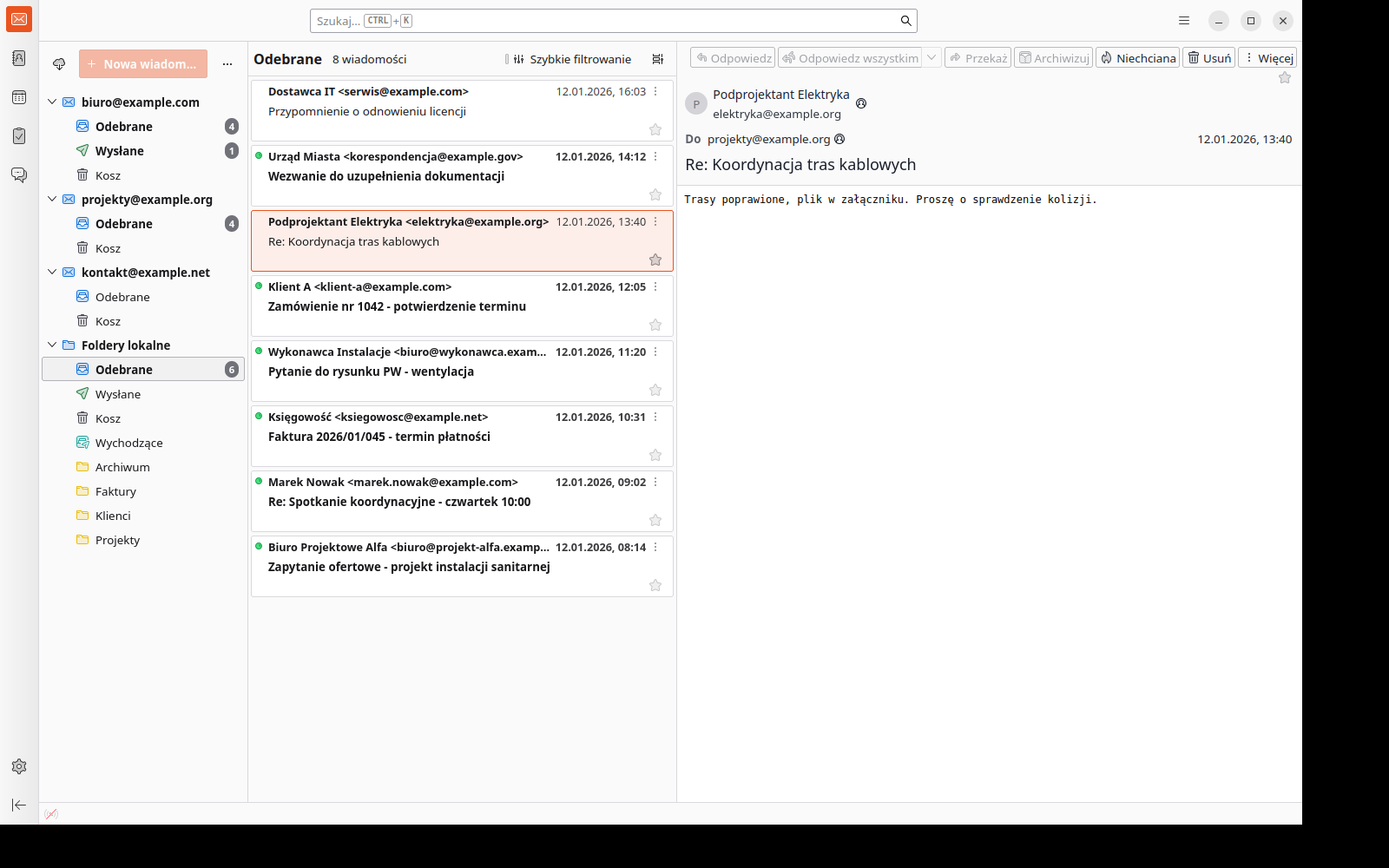
We also introduced an add-on called AI Thunder, which makes it possible to use language models in Thunderbird.
I show how AI organises email in Thunderbird in this video:
The add-on can, among other things:
- summarise messages
- help write replies to emails
- classify messages
At our next meeting, I showed how to connect the add-on to a local language model running on the client’s computer. This means the contents of the correspondence do not leave the user’s computer, ensuring complete privacy.
I described the details of this part, connecting a local model and practical uses in day-to-day correspondence, separately in the post “AI in Thunderbird: email automation, replies and summaries with a local LLM”.
Moving the configuration between computers
Because Marek uses two computers, a Mac and a Windows PC, I showed him how to move the Thunderbird configuration between devices.
This lets him keep:
- email accounts
- message rules
- interface settings
There is no need to configure the entire system again. A simple transfer of settings using the application’s built-in export and import feature is enough.
Results of the implementation
After the implementation, Marek gained, above all, one consistent system for working with email.
The main benefits are:
- all mailboxes in one place
- the ability to create consistent rules across all accounts
- greater control over messages
- time saved
- calmer work without constantly switching between mailboxes
- a lower risk of missing important correspondence
Key lessons from the implementation
This project offers several practical lessons:
- using multiple email clients quickly leads to chaos
- one email client makes correspondence much easier to manage
- well-designed filters and rules can automate a large part of email work
- Thunderbird lets you build a highly flexible working system at no extra cost
FAQ: frequently asked questions
Does Thunderbird support multiple mailboxes at the same time?
Yes. Thunderbird lets you handle multiple email accounts at the same time in one place. This means you can manage all your messages without switching between different applications or web interfaces.
Does Thunderbird work on Mac and Windows?
Yes. Thunderbird is available for Windows, macOS and Linux. This means you can use the same email client on different computers and maintain a consistent way of working.
Can you move a Thunderbird configuration to another computer?
Yes. Thunderbird lets you export and import settings. You can move email accounts, settings and some of the configuration between computers without having to set everything up again from scratch.
Can Thunderbird create message rules and automations?
Yes. Thunderbird has an advanced system of message filters and rules. You can automatically sort email into folders, mark messages, apply labels or perform other actions when messages arrive.
Can you use AI in Thunderbird?
Yes. Add-ons such as AI Thunder let you use language models to work with email, for example to summarise messages, help write replies or classify emails.
Summary
A well-configured email client can significantly improve the way you work. Having all your mailboxes in one place means less switching between platforms, which reduces distractions and makes it easier to manage incoming email.
Instead of using several separate email clients, it is much more convenient to create one consistent email management system that automates a large part of the work.
Thanks to its open architecture and add-ons, Thunderbird offers extensive possibilities in this area, completely free of charge.
Would you like to organise your email?
If you use several mailboxes and feel that email is starting to take over your working day, a well-designed email management system can significantly improve your productivity.
I help design and implement such working systems, including those based on:
- Thunderbird
- automatic message filters and rules
- integrations with AI language models
If you would like to organise your email, you can contact me using the form on the website.
Check also:
- Chinese AI Models: What Happens to the Data You Send Them
- Many Mailboxes in One System: Thunderbird and AI
- What Computer for Revit and BIM in 2026: CPU, GPU, RAM and SSD
- Unstructured Data in Construction: Emails, Notes and PDFs
- Nozbe from Scratch: Priorities, Projects and Weekly Review
This article was created with the help of artificial intelligence.