Priorities, projects, an incoming box and a weekly review that takes twenty minutes. A five day plan for the first week.
Nozbe has a reputation as a tool for teams, so many people only start using it once they already have a team. That is a mistake. You get the greatest benefit from it on your own, when you have eight open items and none of them are kept in one place. Below, I take you through the entire setup on a fresh account: from your first login to your first weekly review. All screenshots come from an account created while writing this post.
What you see after your first login
Nozbe is not a task list. It is a system in which each screen answers a different question. Priorities answer “what today”, Incoming answers “what has not found a place yet”, projects answer “what state is the work in”, and Calendar answers “what is coming up this week”. If you keep all four things in one view, you stop trusting the system.
You open Nozbe in a browser at nozbe.app, and the desktop and mobile apps use the same account. All screenshots in this post come from the browser view, because there you can see the project panel and task details at the same time.
On the left, you have fixed points: Priorities with a counter for starred tasks, Incoming, the Active projects list and the More section, which contains Single tasks, Calendar, Tags, Templates, My tasks, Project groups, Workspace members, Messages and Activity. The first four are enough to start. The rest starts to make sense after two weeks of work, not on day one.
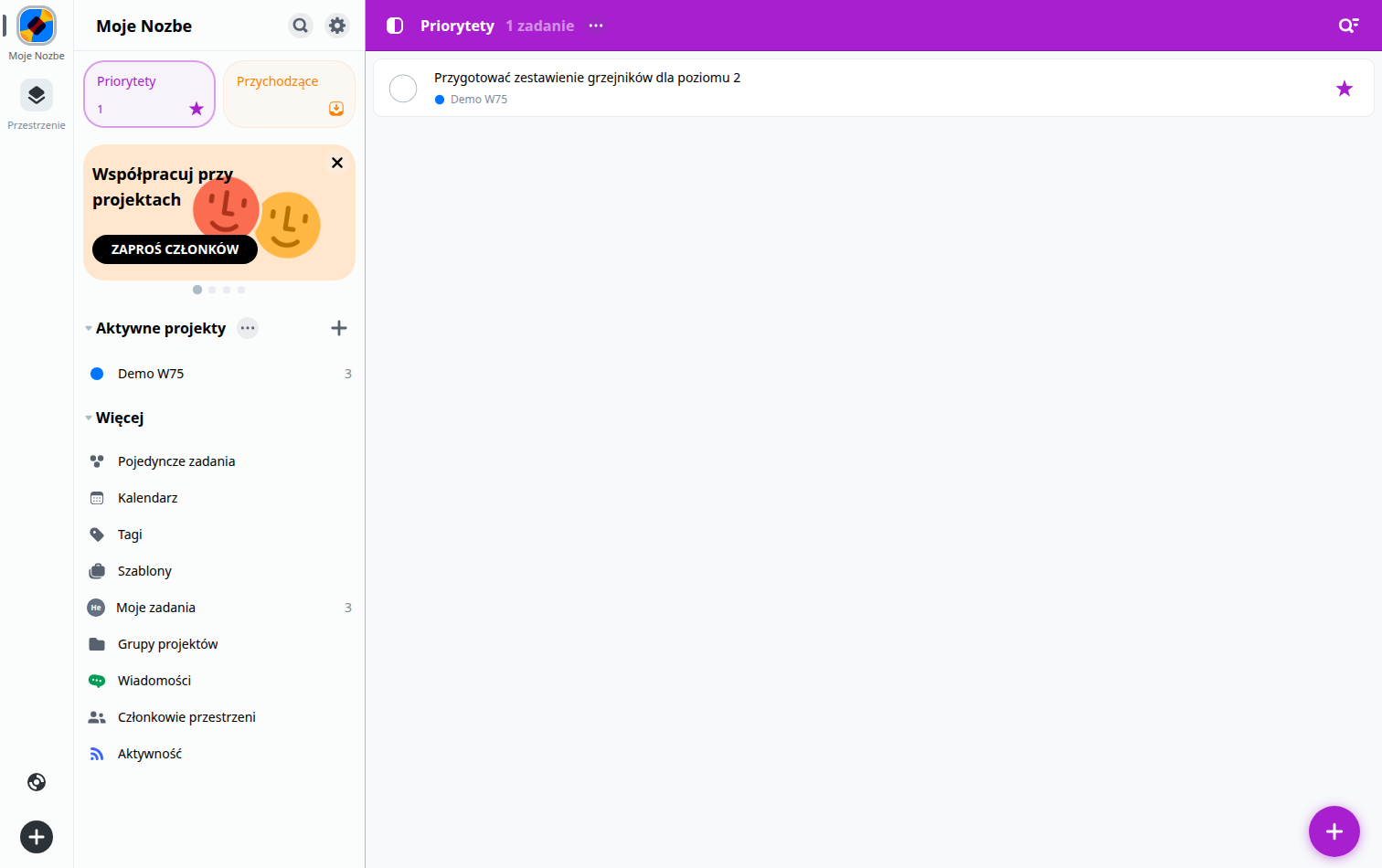
Demo W75 project: name, colour and goal
You create a project from the Active projects list. The name should describe an outcome, not an activity: “Demo W75” is fine for a test, but in everyday work names such as “Level 2 ventilation” or “Hall A tender” are better. Colour is not decoration, but a mental shortcut: one colour for external projects, another for internal ones, and a third for your own development. After a dozen or so projects, you recognise them by their dot faster than by their name.
Below the project name is the Project goal field. It is worth filling in with one sentence, because that is what keeps the scope from growing. In my test, I entered “Demo project for the W75 article”, and it was immediately clear what we were not doing in this project.
I added three tasks to the project: “Collect plans and comments from the architect”, “Prepare a radiator schedule for level 2” and “Send the radiator schedule for approval”. Three items is deliberately few. A project that starts with thirty tasks stops being a project and becomes a warehouse.
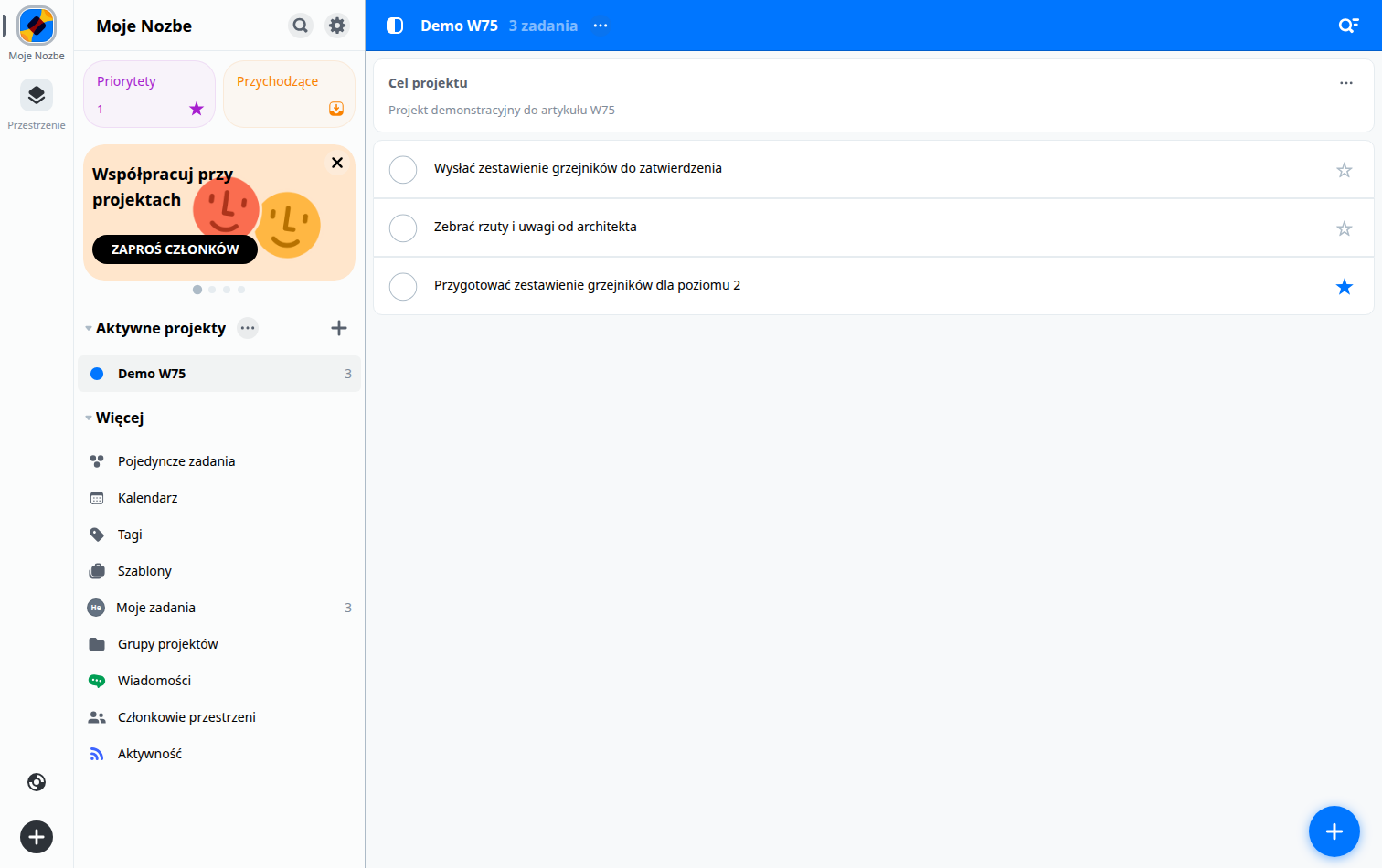
Task: due date, section, tag and person
Clicking a task opens a panel on the right. That is where most day-to-day work happens, because the panel brings together everything the list does not show: Due date, Section, Tags, a reminder, the person responsible and comments.
There are no separate context and category fields in this panel, as you may know from other apps. Their roles are taken over by a tag and a section, described below. You do not set an estimated working time at all: in Nozbe, time means a due date or a time of day, not an estimate.
You set a due date by clicking the Due date field. A calendar opens with a day picker, the Set time option, the Repeat option and a DONE button. The day alone is enough for tasks like “sometime this week”. A time makes sense when the task blocks someone else or has to happen in a specific window, for example before sending a model for coordination.
A section organises tasks within a project. Two or three are enough for a small project: for example, Delivery, Sent and Completed. You add a new section from the drop-down list in the Section field, using the Add new section option. In the test, I created the Delivery section and the task went straight into it.
A tag is a label independent of the project, so it works across all projects. I used the MEP tag, but in practice tags describing the type of work work better: drawing, calculations, meeting, email, phone call. You create them from the Tags field, using Choose tags and Create new tag. The difference between a section and a tag is simple: a section tells you where you are in the project, while a tag tells you what kind of work it is.
The person responsible is a field with an avatar. On a one-person account, it will always be you, but it is worth setting it even then, because after you invite someone else the project will not need rebuilding. Delegation means changing the avatar, nothing more.
You invite members with the INVITE MEMBERS button in the panel on the left, the same one that welcomes you when you start. The free plan limit is three people, so inviting a fourth requires a plan change, as explained below.
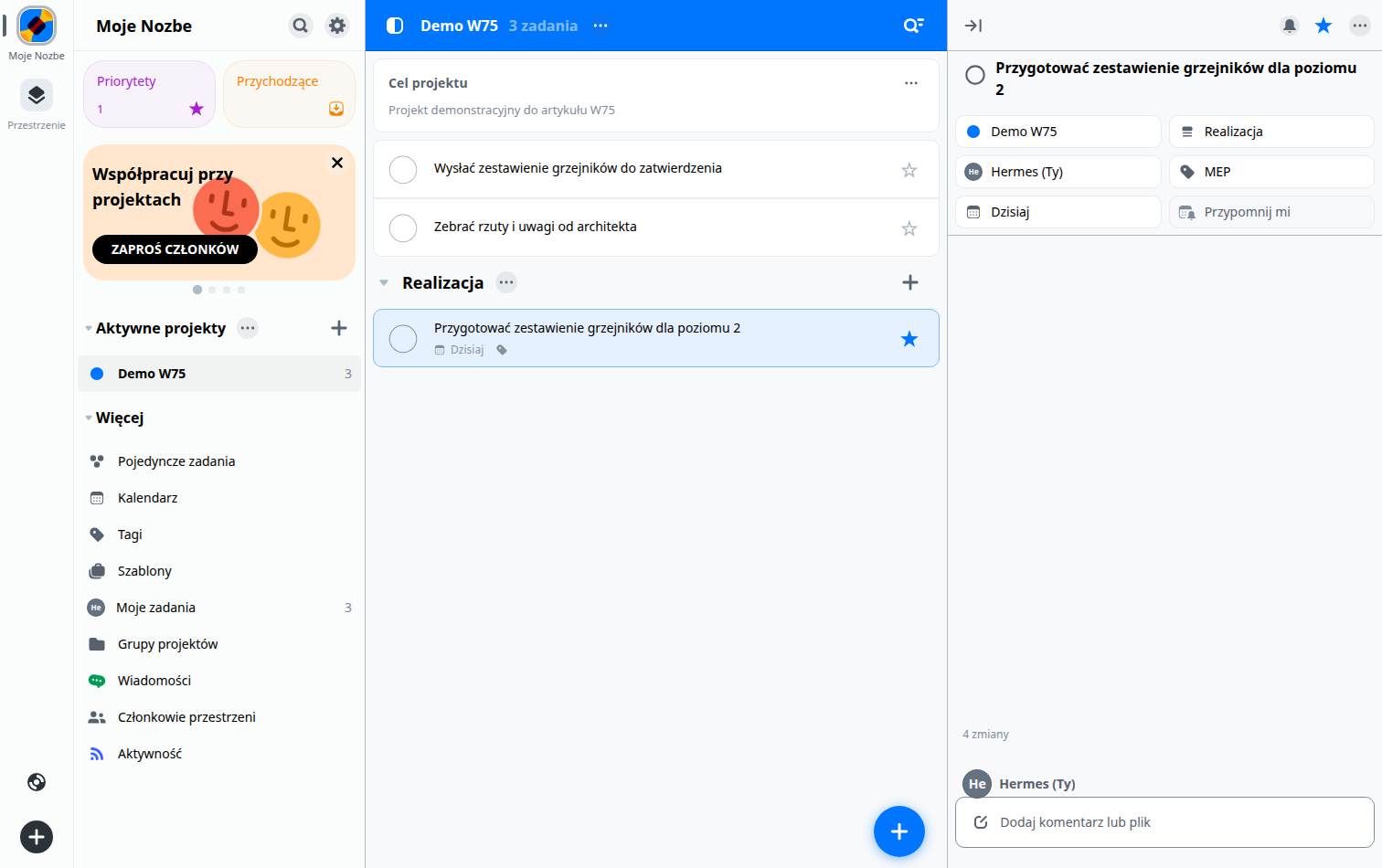
Incoming: one entry point for everything
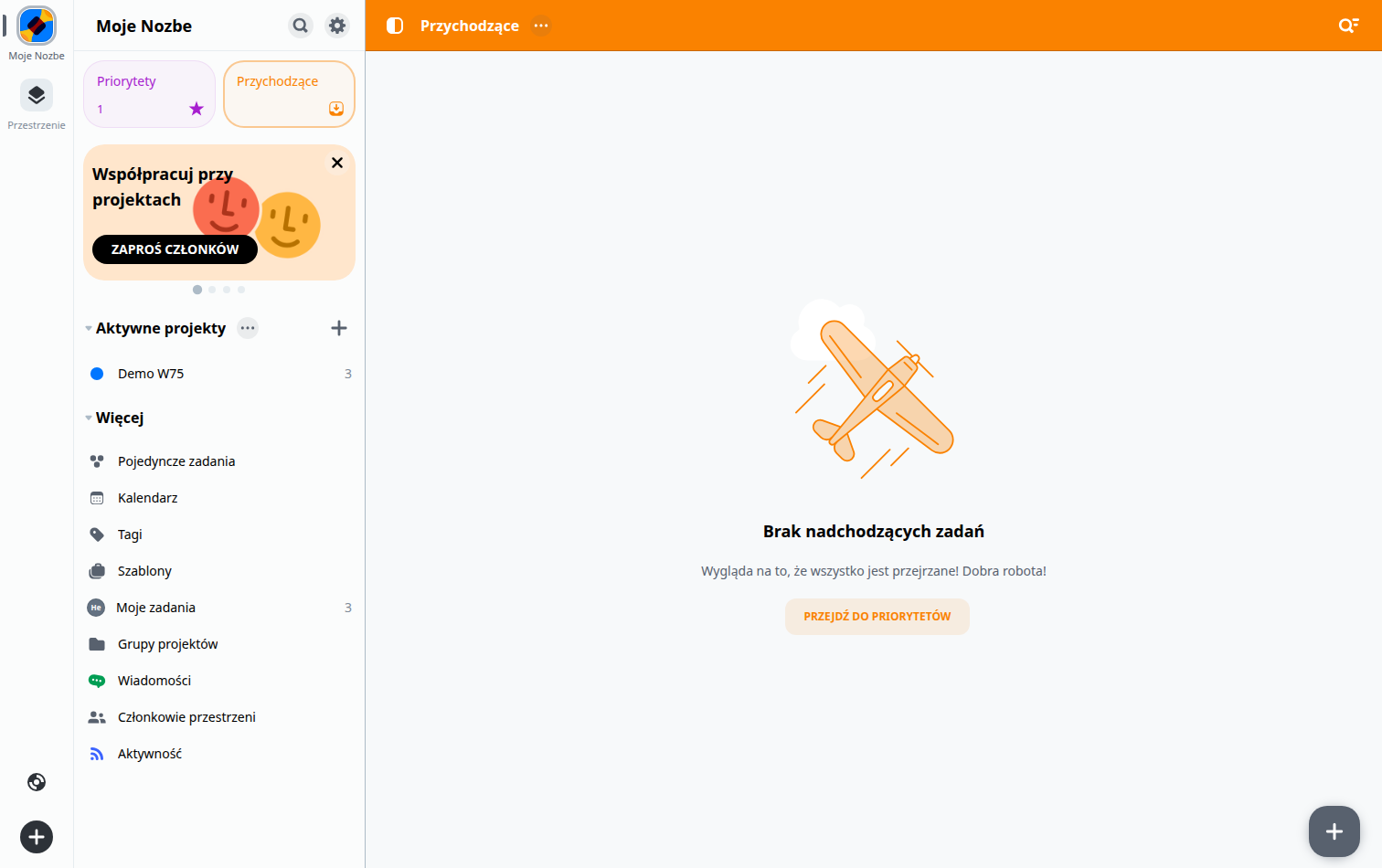
Incoming is an inbox. Everything that comes up during the day and does not yet have a project goes here: an idea from your phone, an email to process, an idea for a post. The rule that stops this view from turning into a second task list: nothing stays in Incoming for more than a day. It either goes to a project, to Priorities, or in the bin.
On a fresh account, the view is empty, which is good news because it means nothing is waiting for a decision. The empty screen with a button leading to Priorities is one of the few places in this kind of tool that does not punish you for having no work.
Calendar: keep the week under control
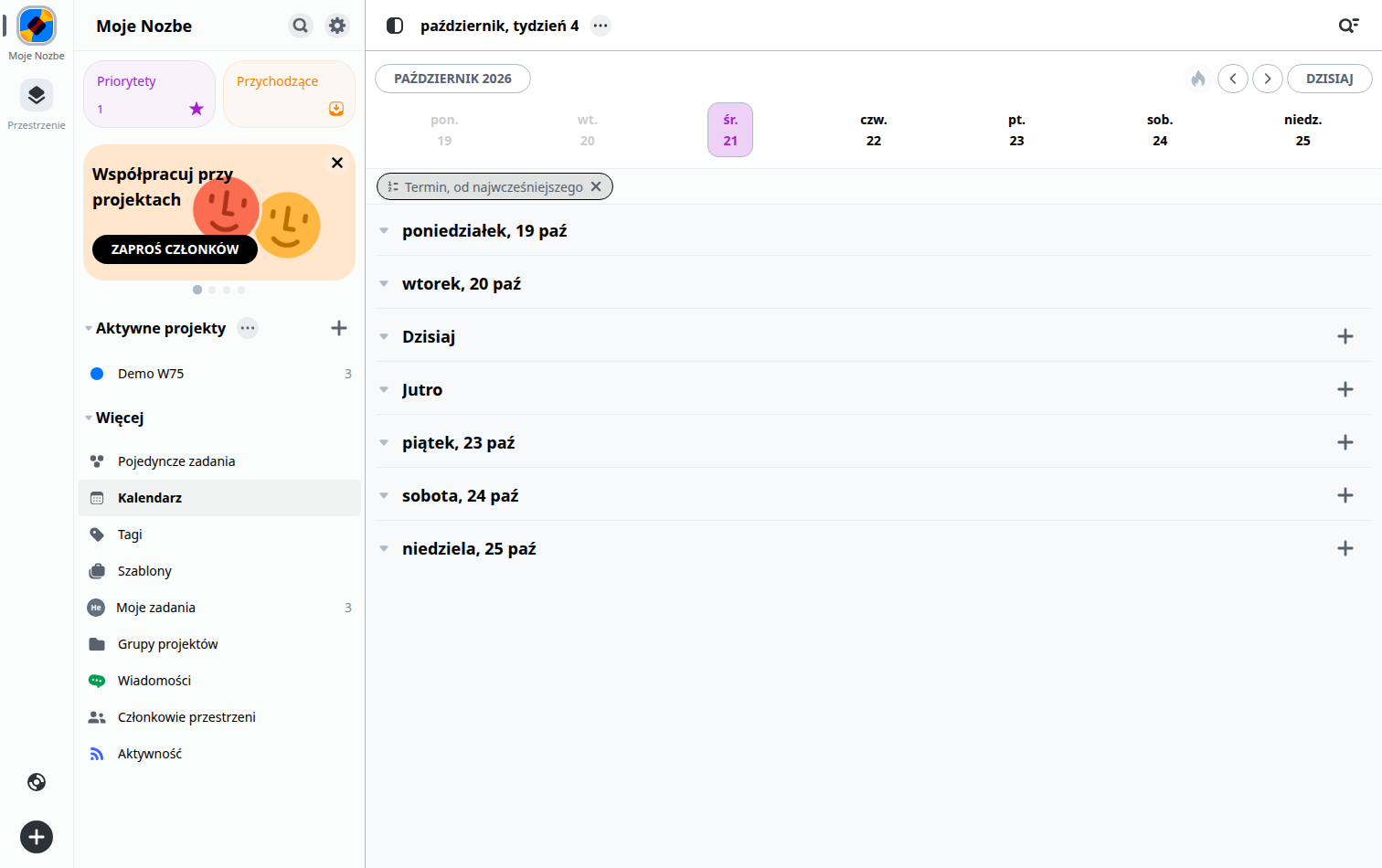
Calendar shows the week, Monday to Sunday by default, with today highlighted and a TODAY button that returns to the current week after you scroll. The filter above the list of days in my view was set to Due date, earliest first.
At the time I took the screenshot, the list of days was empty, even though one task was due today. That shows why it is useful to set a time: the calendar then becomes a list of specific time blocks, not a collection of dates. If you plan your day hour by hour, this view has nothing to show unless the task has a time.
Daily priorities: how to choose three things
Priorities is the only screen you open in the morning. The rule is simple: a maximum of three tasks for today. Not five, not eight. Three, because that is what fits into an engineer’s day when there are also meetings and comments from the coordinator to deal with.
You mark a task with a star, either from the list or from the details panel. That means Priorities contains not everything that is urgent, but only what you really want to finish today. The rest waits in the projects and does not disappear.
I use three criteria to make the choice. First: what is blocking someone else, for example a schedule the architect is waiting for. Second: what is due today and cannot be moved without consequences. Third: what moves the project forward by one step, even if nobody notices. If no task meets at least one of these conditions, it is probably not a priority, but a backlog item.
Weekly review: what to move, close or delegate
I do the review on Friday, and it takes about twenty minutes. Four passes, always in the same order.
First, Incoming. Every item gets a project or goes in the bin. This pass is the shortest and the one most often put off, which is why it comes first.
Then Priorities. Look at what is left and ask why it is still there. A task moved for the third time is not difficult, it is poorly phrased. Break it down or remove it.
The third pass is projects. In every project, check whether there is at least one task due next week. A project with no due dates is not a project, but an archive.
The fourth pass is Calendar for next week. This is where clashes show up: two site visits on one day, a meeting in the middle of a block of model work, or a deadline that falls on a day off.
Four decisions to make as you go: move the due date, close the task, delegate it to someone else, or delete it. There is no fifth option. Leaving a task without a decision is the most common reason the system stops working after a month.
How much does it cost to get started: free plan limits
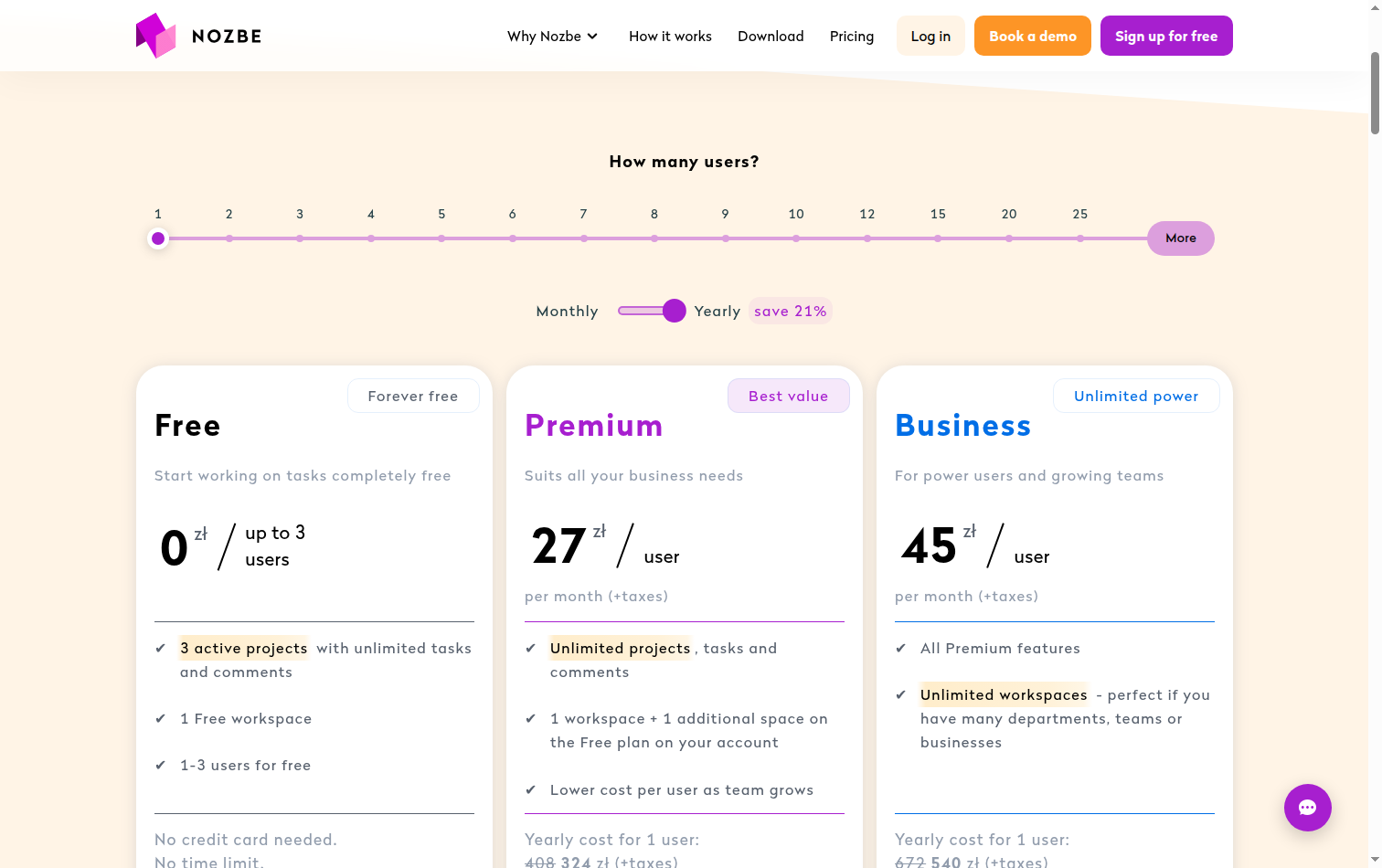
Nozbe’s free plan allows one workspace, three active projects and up to three people. The number of tasks and comments is not limited, and no payment card is needed. I checked this on the pricing page on 21 October 2026, rather than relying on memory.
In practice, three active projects is more than someone starting out needs. The restriction starts to pinch when projects accumulate in the Active column instead of being completed. Archiving old projects helps, because the limit applies to active projects, not all projects.
Paid plans start at 27 zł per person per month when billed annually; the Business plan is 45 zł per person per month. For a team of three, that means the free plan is enough to test your habits, and you decide to pay when you know the system is here to stay.
First week: a five-day plan
- Day 1: create one project and put everything on your mind into it. Do not organise or tag anything.
- Day 2: clear Incoming to zero. Every item gets a project or goes in the bin.
- Day 3: set due dates for the coming week. Where a task blocks someone else, add a time.
- Day 4: choose three priorities in the morning and check in the evening how many remain. Do not change your choices during the day.
- Day 5: do your first weekly review, even if it takes ten minutes.
Summary
Nozbe works when you keep decisions in it, not all your information. A project says what you are working on. A task with a due date says when. A section and a tag say where and what kind. Priorities say what to do today. The weekly review makes sure it all does not fall apart after two weeks.
If you want a broader view of how these tools compare with others, see the post Project management software, where I compare Asana, Trello, ClickUp and Nozbe using the same tasks. Tutorials for Trello, Asana and Notion are also being made in this series; when they are ready, I will link them here.
See also:
- What is Hermes: the agent that lives on a server
- Project management in practice: Trello, Asana, Nozbe and Notion
- Revit performance tuning for large MEP models
- Toggl Track from scratch: time tracking in a design office
- Trello from scratch: your first board, lists and cards
Check also:
- Chinese AI Models: What Happens to the Data You Send Them
- Many Mailboxes in One System: Thunderbird and AI
- What Computer for Revit and BIM in 2026: CPU, GPU, RAM and SSD
- Unstructured Data in Construction: Emails, Notes and PDFs
- Nozbe from Scratch: Priorities, Projects and Weekly Review
This article was created with the help of artificial intelligence.