
A timer, projects, tags and reports in one working week. How to start tracking time in a design office without turning it into a second job.
When did you last calculate how many hours it took to prepare a ventilation model for a project? Not days elapsed, but your actual work hours. Most small design-office owners know only roughly, yet that figure determines whether the next project quote is profitable.
Toggl Track measures time, not work. Unlike Trello, Asana, Nozbe and Notion, compared in my separate post about project management tools, it does not organise tasks: they say what to do; Toggl says how long it took. This guide takes you from zero to a useful report on a real account, with screenshots and figures from the app.
In this post, I show:
- how to start the timer and what to enter in the time entry description,
- how to build a structure of clients, projects and tags,
- how to read the summary report and detailed report,
- how to correct entries in the calendar,
- what the free plan really gives you and what it does not include.
Would you rather watch than read? I show the full Toggl Track walkthrough in this video:
Why track time in a design office and what not to track
Three reasons that genuinely change the way an office works.
The first is pricing. If your ventilation projects take an average of 22 hours, but you allow for 12 in your quote, you do not have a productivity problem, you have a pricing problem. Without tracking time, you cannot tell one from the other.
The second is client billing. Hours for an internal project and hours for a billable project cannot go in the same bucket, because the first are a cost and the second are income.
The third is a conversation about overload. Saying, “I think I have too much work” does not work. A chart showing 47 hours in a week does.
What not to track: do not count time spent going to the toilet, coffee breaks or switching between tasks. Do not build a system where every minute needs a category, because you will stop using it after two weeks. Do not track the time of the whole office before you have built the habit yourself, either. Start with yourself and one project.
Timer: start, stop, entry description, project and task
The timer bar stays at the top in every view. Enter what you are doing in the left-hand description field, then click start. The timer runs and the entry appears in the list and calendar.
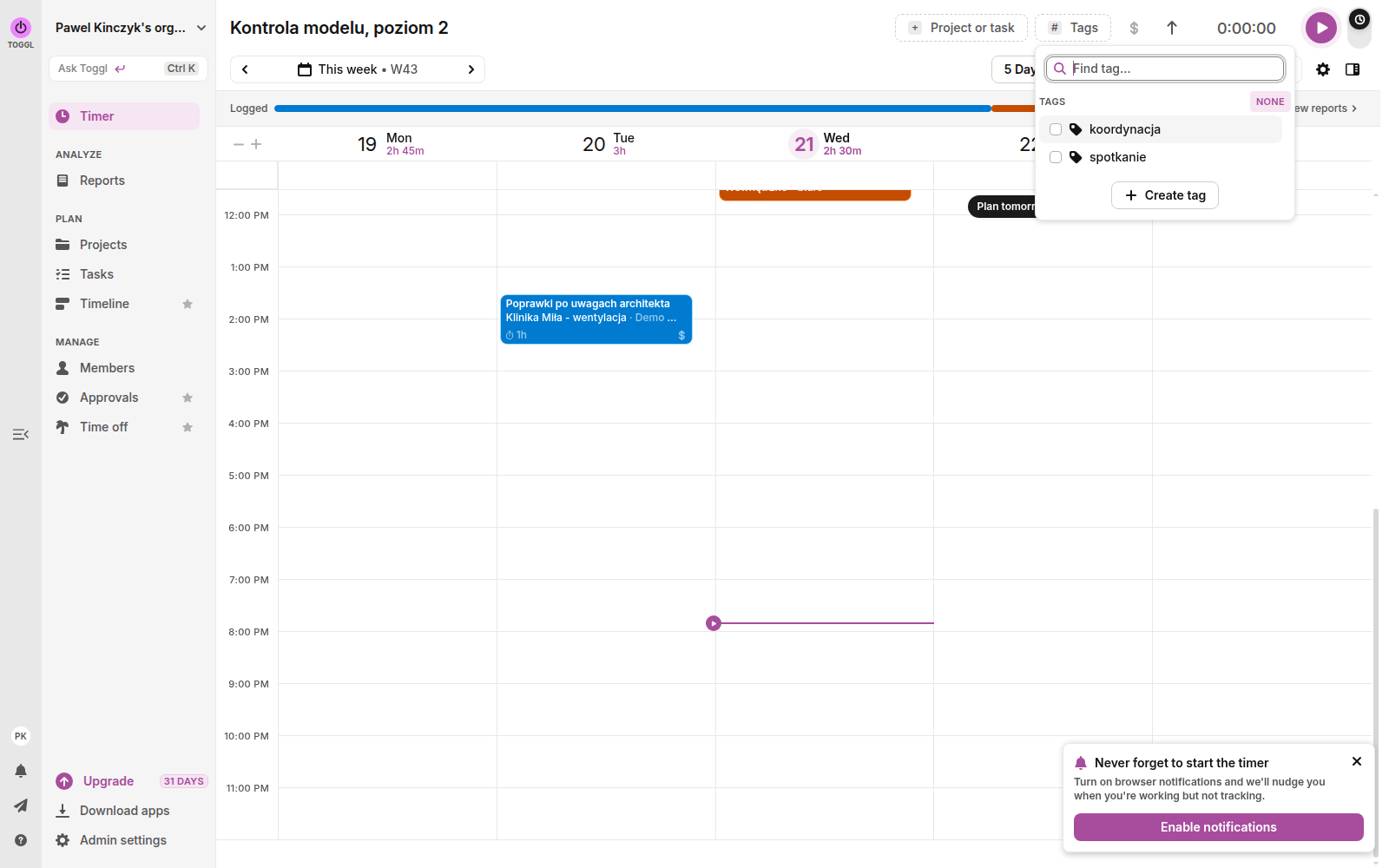
The description is the system’s most important decision. Be specific enough to remember the work a month later, but brief: “Ventilation model, level -1” works; “Working on the project” does not, because all entries look alike.
The bar’s right-hand fields are project or task, and tags. Assign the project immediately, or you will not know what the hour belonged to. Tasks are optional, useful on larger projects to separate model time from schedules. Stop with the same button. If forgotten, the timer runs all night, but you can correct it in the calendar, as explained below.
Projects and clients: structure, colour and rate
A useful small-office structure has two levels: client and project. The client is the company; the project is the commission. Avoid a project per building when one building has stages, or you will have a hundred entries and unread reports. Better: client “Architectural practice”, project “Miła Clinic, ventilation”.
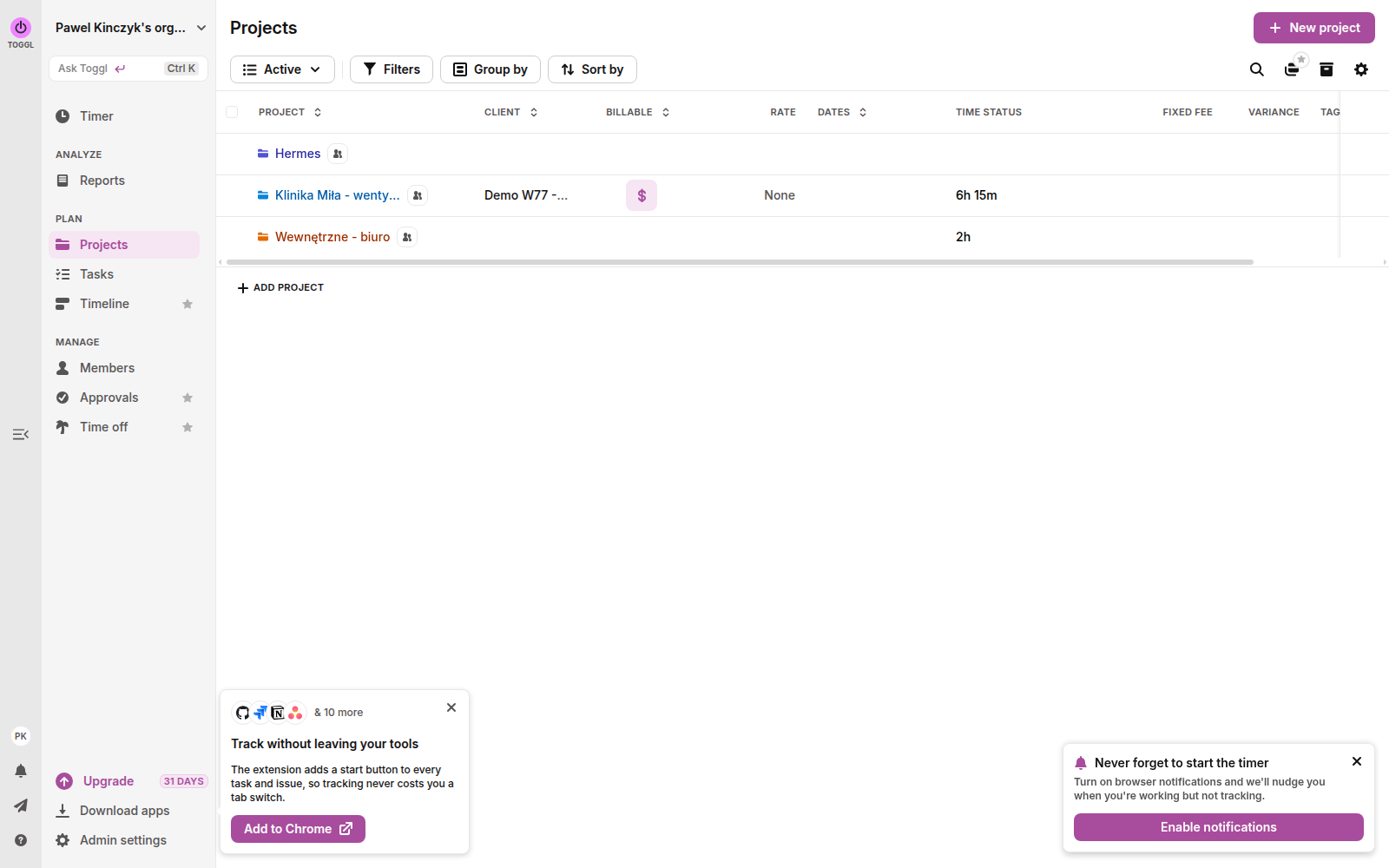
Project colour is practical, not just aesthetic. Coloured blocks in the calendar and entry list show at a glance whether the day went to projects or internal work.
The billable switch determines whether hours count as income. Mark client projects billable, but not “Internal, office”. One click makes reports accurate.
Set hourly rates in workspace settings, under Billable rates, from a specified date. Rates are unavailable on the free plan, so report amounts stay empty. This is a plan limit, not an app error. More below.
Tags and billable entries
Tags cut across projects: projects answer “for whom”, tags “what”. Three or four suffice: coordination, meeting, modelling, revisions. More makes selection slower than the work.
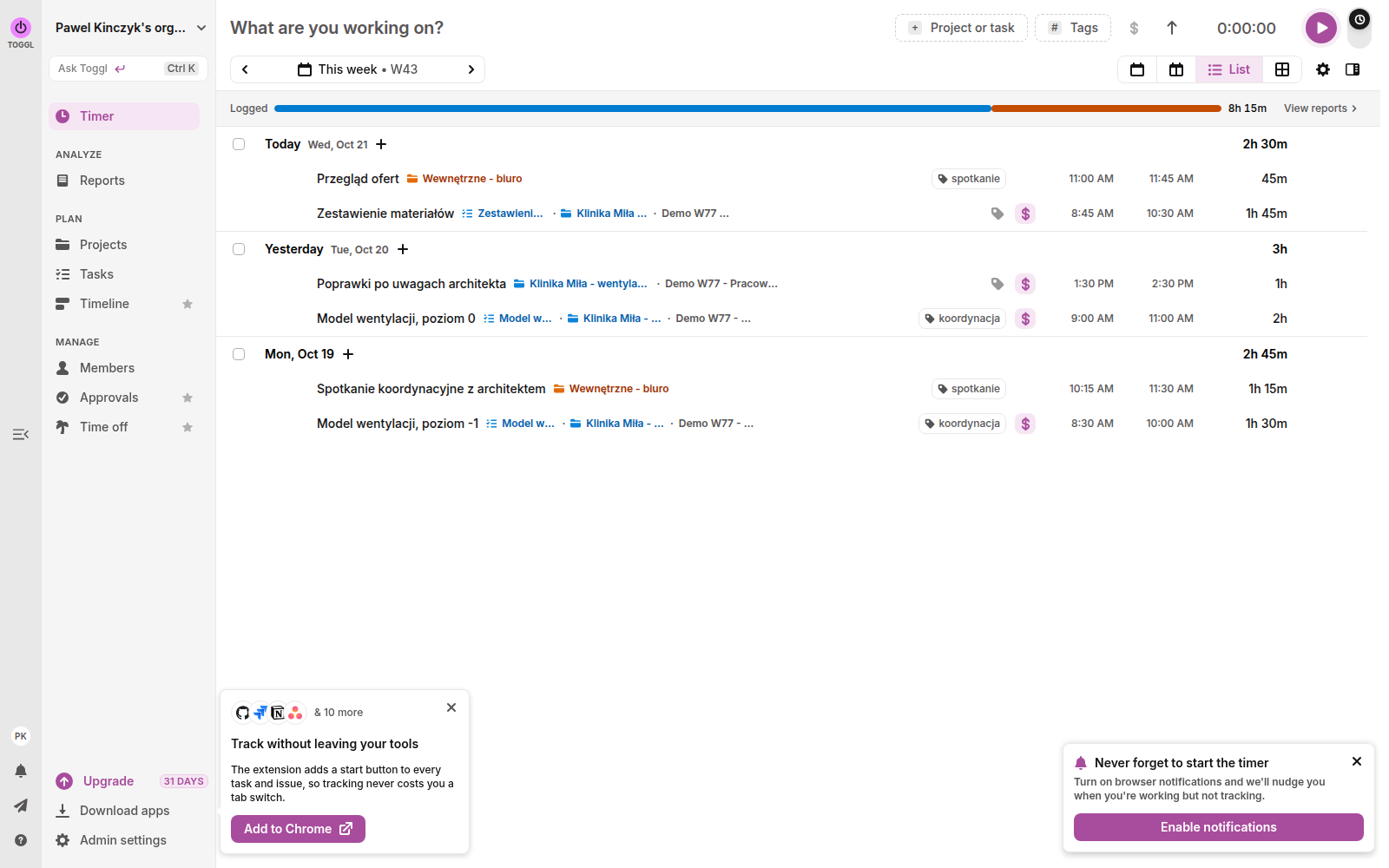
A billable entry belongs to a billable project and is itself marked billable. It appears in the report’s billable column and contributes to the amount if a rate is set. Bill only hours you could put on a client invoice without explanation: modelling, revisions and schedules, not inbox clearing or file searches.
Reports: summary, details and cost
Open the summary report on Friday. It shows logged and billable time (with percentage), amount, daily average, and breakdowns by team member and task.
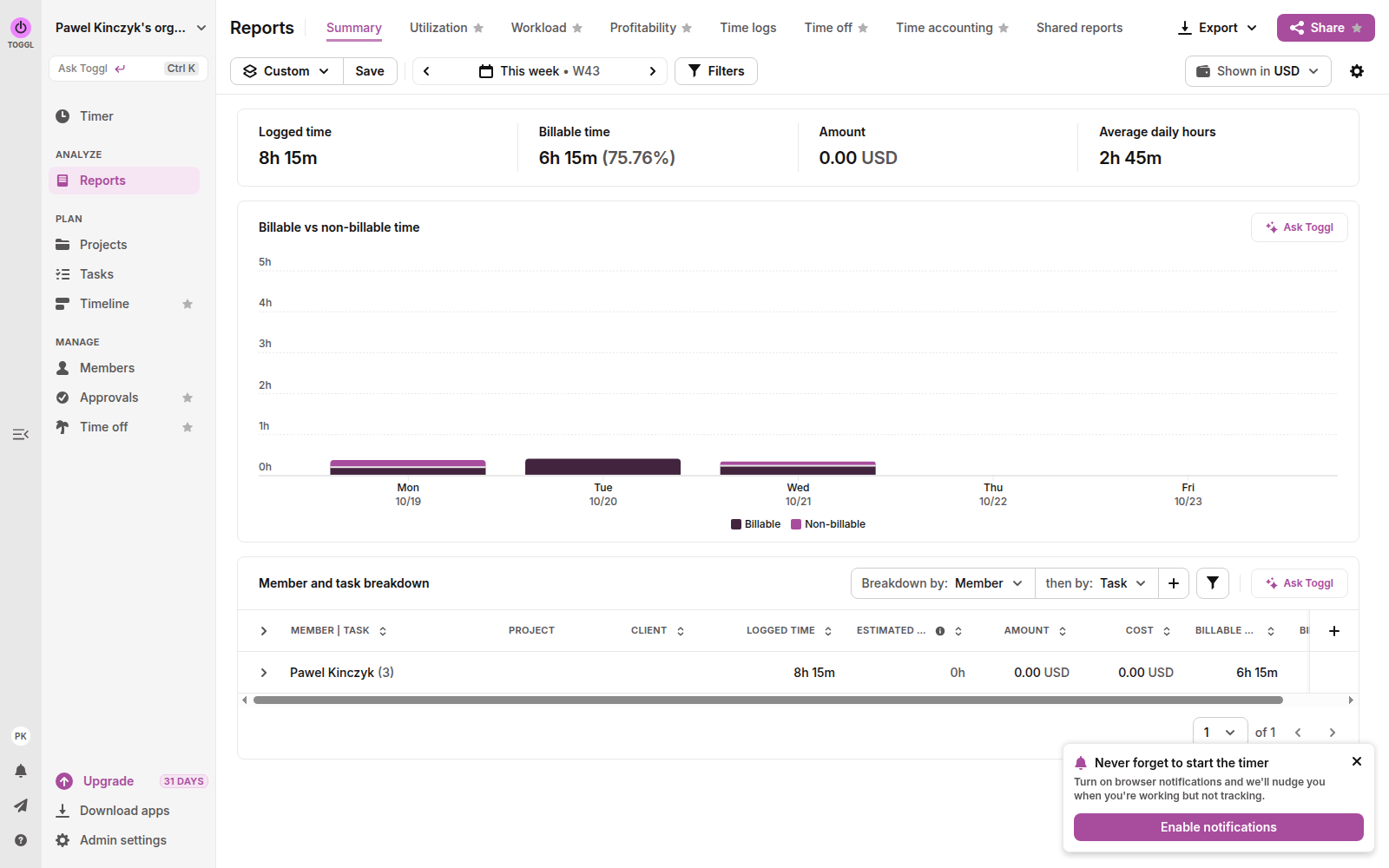
Three figures matter most: billable share shows what you can invoice; daily average reveals missing data, for example just 30 minutes on Wednesday means the timer was forgotten; task breakdown shows where project time goes.
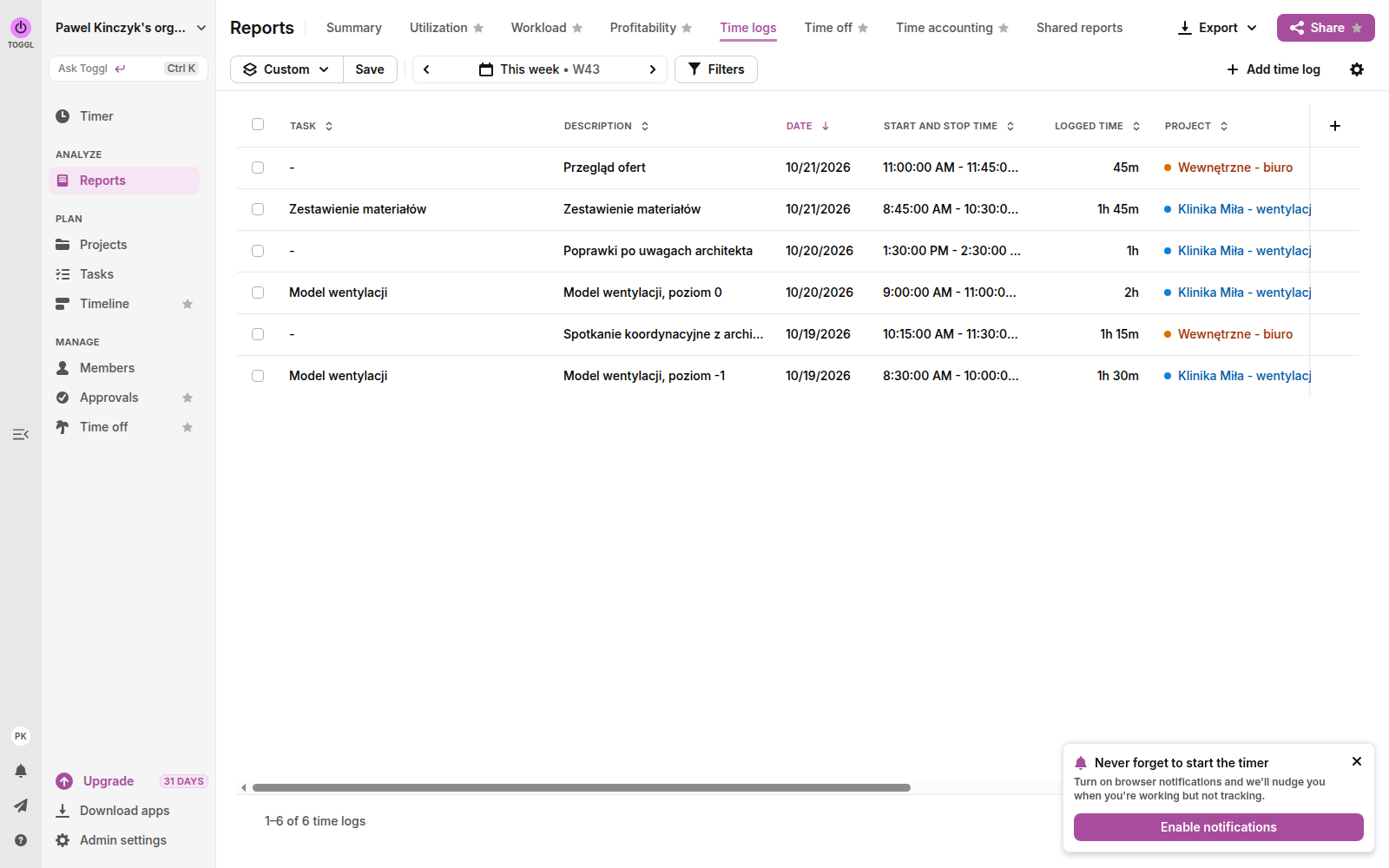
The detailed report is Time logs, a filterable list of every entry, minute, project, task, tag and amount. Use it for billing and to check whether, for example, someone logged eight hours on a two-hour task. CSV export is available on the free plan, so there is no manual retyping for invoices.
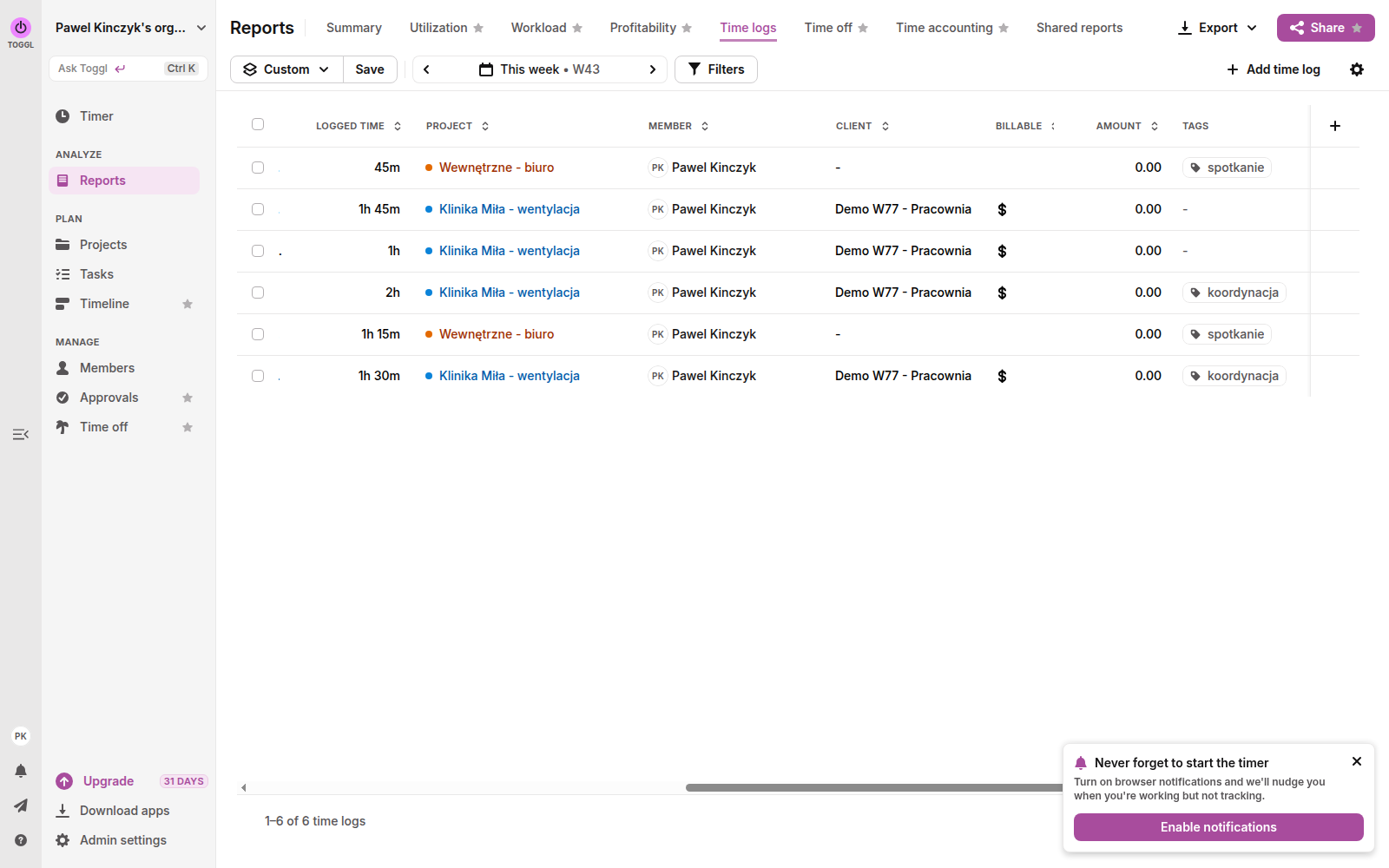
The billing layout adds team member, client, billable marker, amount and tags. It is for invoice issuers, showing money beside hours.
Project cost is time multiplied by rate. Without a rate there is no cost, so set one even if you quote a fixed fee rather than bill hours. Otherwise, you cannot tell whether the project was profitable.
Calendar and manual corrections to entries
The calendar shows the week as time blocks, making gaps and phantom entries easy to spot.
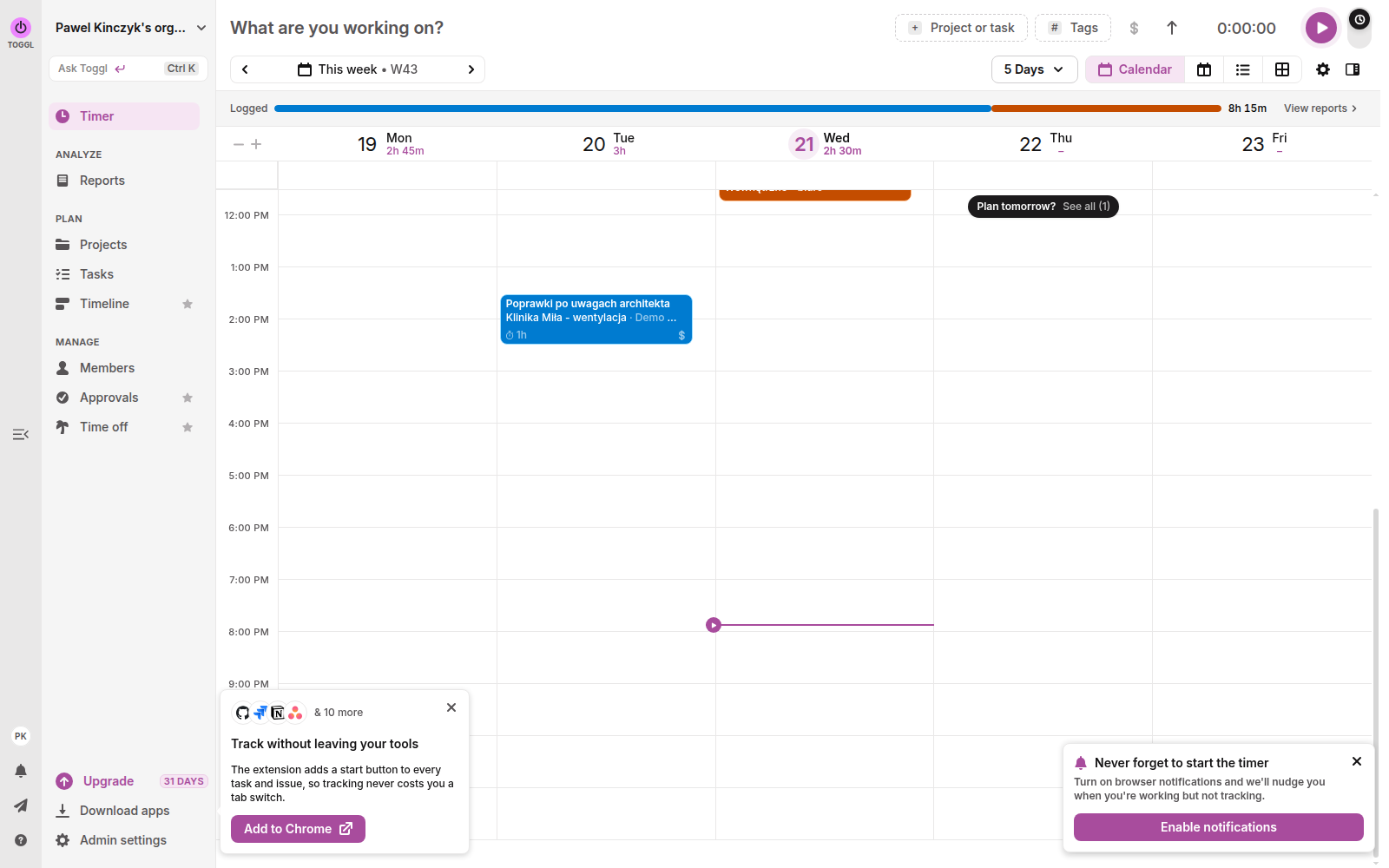
Correct an entry by dragging its block or editing its start and duration. To add missed time, click an empty calendar space and enter the activity. This is the honest way to recover a day when you forgot the timer.
Correct entries that evening, not a week later. You may not remember whether a meeting took 45 minutes or an hour and a half, and a guessed figure means nothing.
Free plan limits
Figures are from the app, not memory. At writing, the account is on Free, for up to 3 users, with a simultaneous 30-day Premium trial. Some features are temporarily available, so screenshots may show functions that disappear when the trial ends.
Free includes manual and real-time timers, Pomodoro, keyboard shortcuts, calendar integration, Focus Mode, mobile sync, task and board views, estimates, recurring tasks, unlimited projects and tags, personal reports and CSV export. It is enough for time tracking in a small office.
Free excludes billable rates, team reports, utilisation and workload reports, timeline and time off. The public API limit is 30 requests per hour, versus 240 on Starter and 600 on Premium.
Plan-screen prices: Starter, 12 dollars per licence monthly or 9 dollars annually; Premium, 24 dollars monthly or 16 annually. Annual billing saves 33 per cent. Add-ons: Time Off, 2 dollars per user monthly; Capacity Management, 5 dollars per user monthly.
If you run a one-person office and do not bill hourly, stay on Free. Set a rate during the trial and make a cost report before it ends. The report stays, but amounts disappear.
Where to start on Monday
Four quick steps.
Create one client and two projects: one billable, one internal. Set colours to distinguish them in the calendar.
Create three tags: coordination, meeting, revisions.
If you have a trial or paid plan, set an hourly rate under Billable rates. Without one, reports show hours, not money.
Start the timer on your first task and describe work as if explaining it to a client. After two weeks, check billable share in the summary report. Below 50 per cent shows where the day goes.
Time tracking matters only when it answers a question: is this project profitable? Toggl Track can answer when projects are organised and rates set. The rest is habit.
For how Toggl differs from work-planning tools, see my post comparing Trello, Asana, Nozbe and Notion. I also wrote an older post about time tracking; a separate article will cover its place in a company knowledge system.
Check also:
- Task Cost Measurement: The Tool Report Is Not an Invoice
- Comfort at the Computer: An Ergonomic Workstation Step by Step
- Chinese AI Models: What Happens to the Data You Send Them
- Many Mailboxes in One System: Thunderbird and AI
- What Computer for Revit and BIM in 2026: CPU, GPU, RAM and SSD
This article was created with the help of artificial intelligence.