Four project tools on real accounts: what the free plans actually allow, which views exist, what the pricing pages hide and what you see after the first login.
A few years ago, choosing project software for a small design office came down to one question: who on the team knows Excel well enough not to lose track of deadlines in it. Today the problem is the opposite. There are so many tools that the choice itself starts to block work instead of organising it.
That is why I did not read the vendors’ websites. I sat down with four working accounts: Trello, Asana, Nozbe and Notion. All screenshots in this post come from those accounts and show the state on the day of writing. Where an account was empty, I say so plainly, because an empty screen is also information about the tool.
In this post I will show:
- what the same design office work looks like in four different working models,
- how many people and projects the free plan of each tool holds,
- which features you have to pay for even though they look basic,
- what order of choice I suggest at the end.
Seven criteria that really differentiate these tools
Before I compare the apps, let us settle what to look at. The list below is not theory from industry articles. It is seven things that in practice decide whether a team adopts a tool or goes back to a spreadsheet.
- Speed of start. How much time passes between signing up and the first card or task.
- Views. Whether there is a list, board, calendar and timeline, or only one of them.
- Collaboration. Assigning people, comments, watching for changes.
- Automations. Whether rules are in the free plan and how many per month.
- Free plan limits. Number of people, projects and boards.
- Integrations. Whether the tool can be connected to the rest of the office’s work.
- Price. What the first plan costs in which you can work with a team.
For a design office, two of these criteria weigh more than the rest. The first is the people limit in the free plan, because an office rarely numbers one person. The second is views, because a schedule is not a task list but a timeline or a calendar. And here comes the first surprise: in two of the four tools the timeline view is in a paid plan, and in the third it does not exist at all.
Trello: a board that pretends to be nothing more
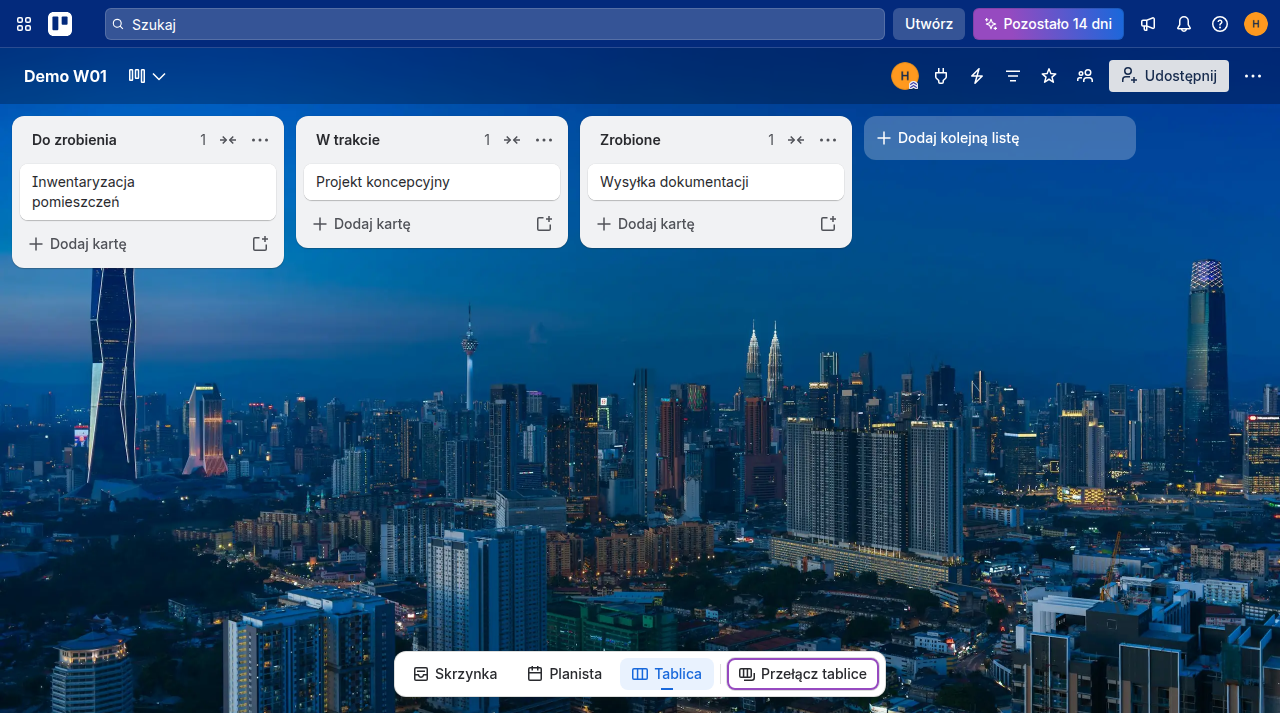
Trello came first because it has the simplest model: board, lists, cards. In Demo W01 there are three lists, To Do, Doing and Done, and each has exactly one card. The whole structure of an office project fits on one screen without scrolling.
See Trello in action:
I opened the Room inventory card to check how much information the tool itself demands from a person. It demands nothing. The Members, Labels, Dates and Checklist sections are empty, the description is empty too, and in the activity column there is one event: someone moved the card to the Doing list.
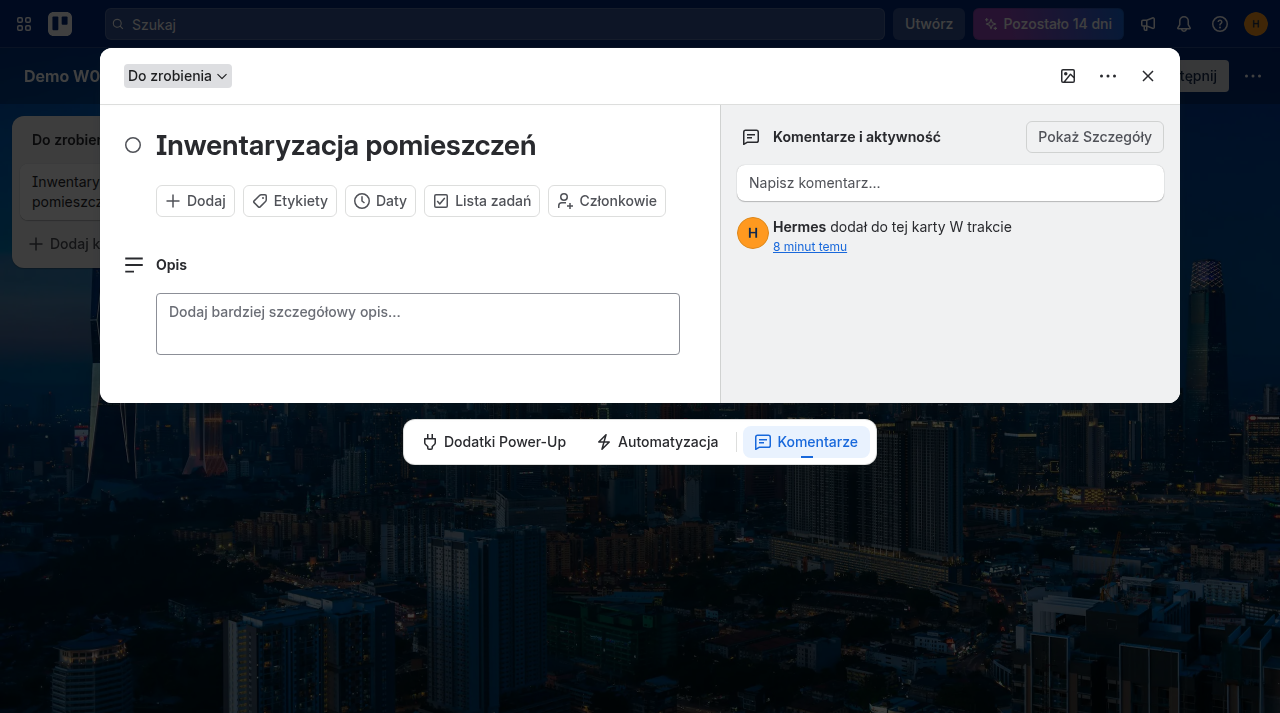
This is at the same time the biggest advantage and the biggest weakness of Trello. A card is created in two seconds and nobody has to complete anything, so a board appears faster than in any other tool in this comparison. But after a month the same empty fields mean the board stops answering the question of who does what and by when.
Free plan limits
I checked them on the Trello pricing page, not from memory. The free plan is zero dollars and ten collaborators in the workspace. Plus ten boards, unlimited cards, unlimited Power-Ups on a board, files up to 10 MB and 250 automation runs per month.
The most important limitation, however, does not concern numbers but views. Calendar, Timeline, Table, Dashboard and Map are listed only in the Premium plan, that is 10 dollars per person per month billed annually, or 12.50 dollars monthly. The Standard plan at 5 dollars adds, among other things, unlimited boards, custom fields and a thousand automation runs. For an office that wants a timeline schedule, the real price of entry is therefore not zero.
Strengths: the fastest start of all four, a metaphor you understand without training, the free plan lets ten people work.
Weaknesses: nothing forces structure, so cards lose their meaning over time, and timeline views are outside the free plan.
Asana: when there are more tasks than cards
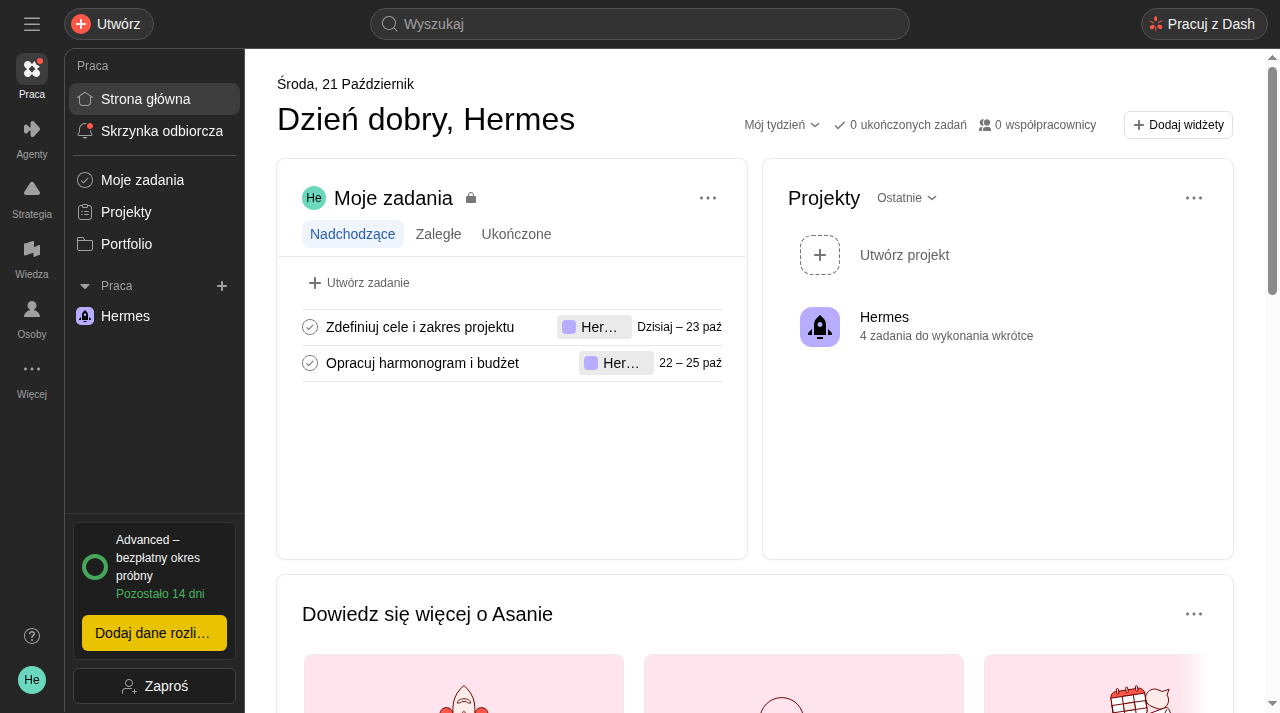
Asana starts with a workspace and a home page that shows the user’s morning: a greeting, today’s date, the My week dashboard and two collections of tasks, personal and project. On the test account the My tasks card had two tasks with due dates, and the Projects card had one project called Hermes with a note that four tasks are due soon.
See Asana in action:
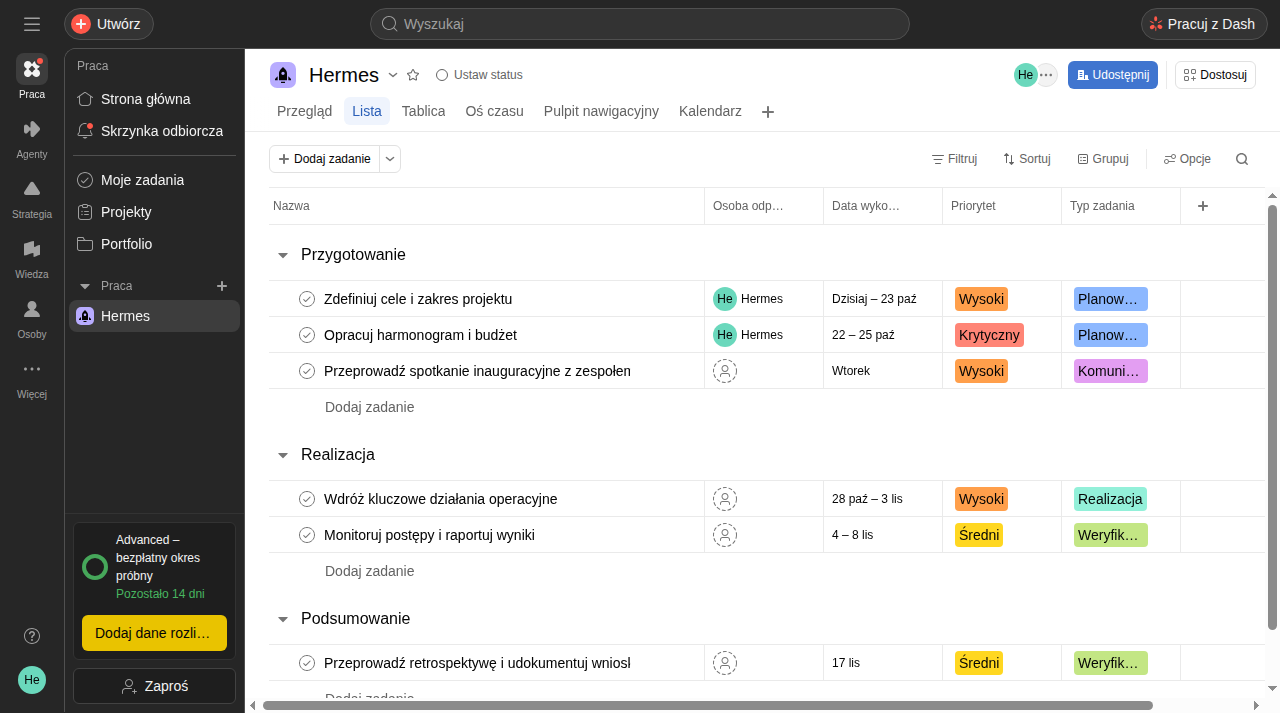
In the Hermes project there are six tasks in three sections: Preparation, Execution and Summary. The list view shows five columns: name, assignee, due date, priority and task type. Only two of the six tasks have a person assigned, the rest are waiting for an owner.
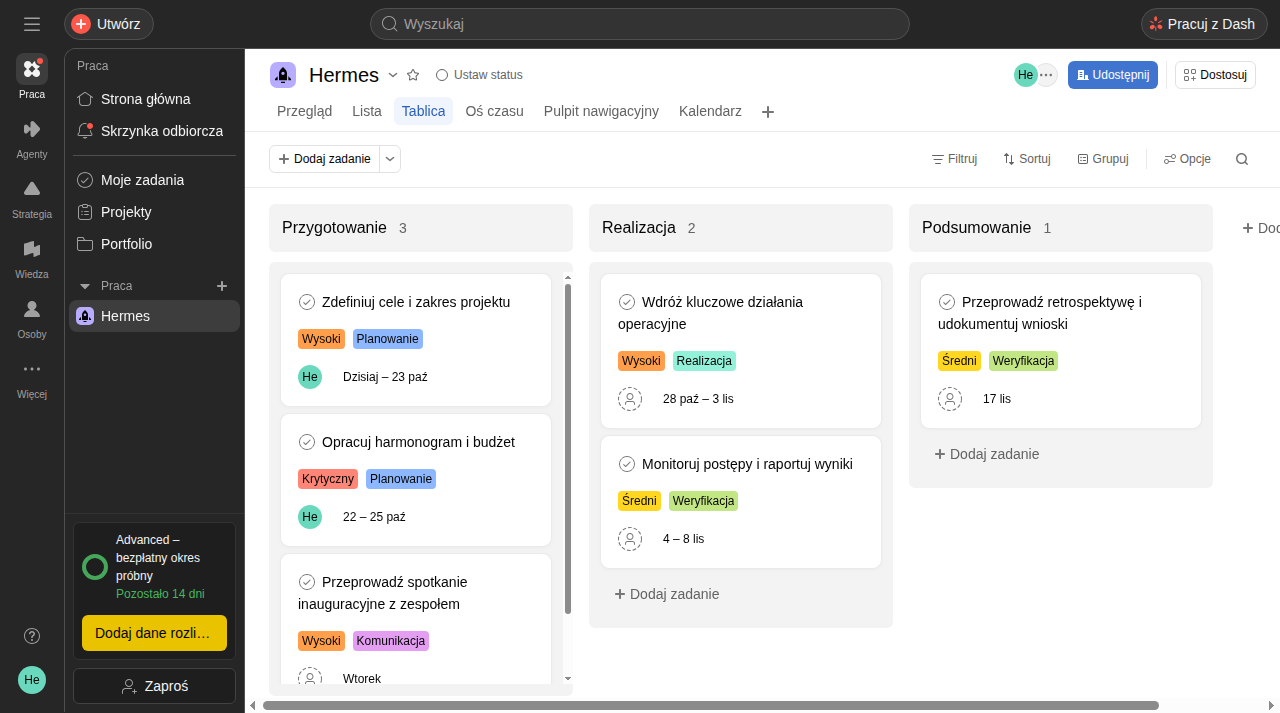
The same project on a board reads faster than a list, because the columns correspond to the sections and you see at once that Preparation has three cards, Execution two and Summary one. Above the project there are six view tabs: Overview, List, Board, Timeline, Dashboard and Calendar.
And here the matter has to be stated clearly, because it changes the whole conclusion. The account on which I took these screenshots was not on the free plan. In the bottom left corner there is a note: Advanced plan, free trial, 14 days left, plus a button to add billing details. Priority and task type are custom fields, and they also belong to paid plans. When the trial ends, the account will drop to the Personal plan.
What remains in the Personal plan for zero dollars? According to the pricing page: up to two users, unlimited tasks and projects, list, board and calendar view, files up to 100 MB each and over a hundred free integrations. Timeline, Gantt chart, task dependencies and milestones are listed only in the Starter plan at 10.99 dollars per user per month billed annually.
For a design office this is the one concrete detail that settles the matter. Two users in free Asana means that a three person team starts by paying. If four people work in the office, the free plan is not an option, and that is not a matter of preference.
Strengths: the best organisation with a large number of tasks, six views, sections within a project, a clear split between my tasks and project tasks.
Weaknesses: a free plan intended for two people, timeline and dependencies in a paid plan, quite a few fields to fill in for a project to be useful.
Nozbe: order more important than views
Nozbe has a different centre of gravity than the two previous tools. It does not start with a project but with the priorities of the day. On the left there are two main tabs: Priority, marked with a star, and Incoming, a box for everything that has no place yet. Below them a list of projects, calendar, tags, templates and project groups.
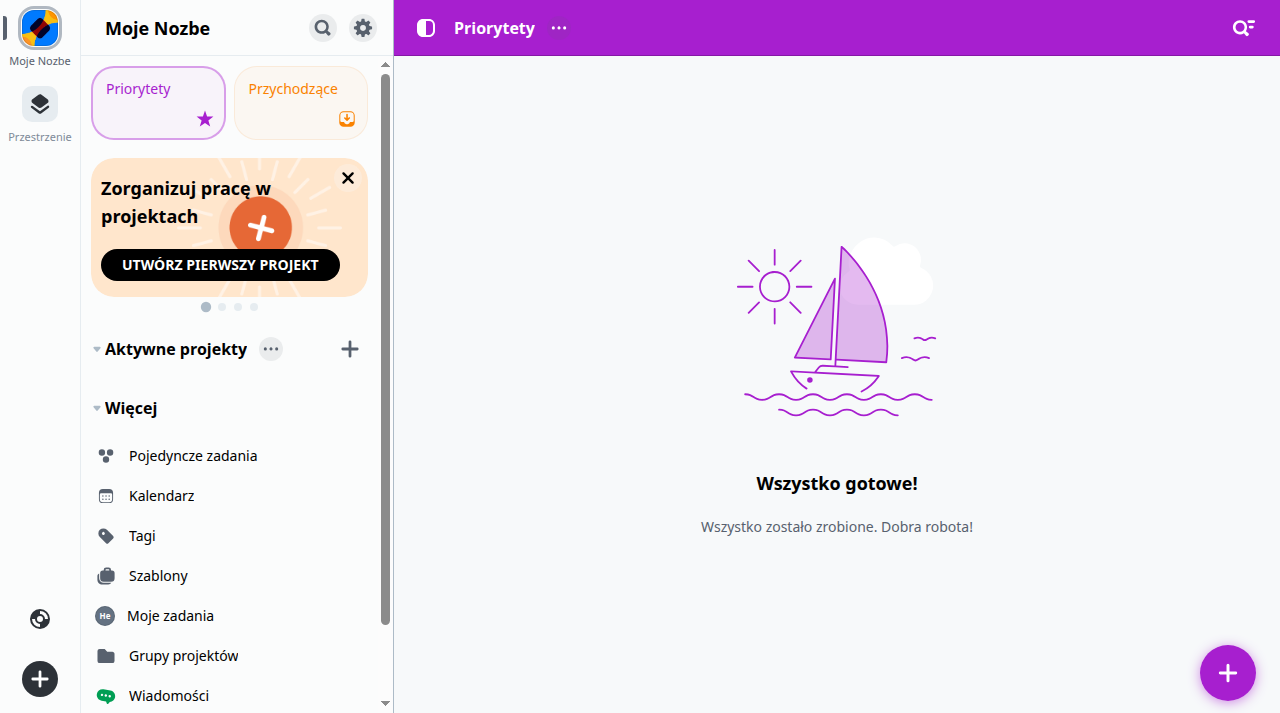
The account was fresh, without a single project, so the Priority view showed an empty state with the message “All done!” and the sentence “Everything has been done. Great job!”. It is a small thing, but worth noting: the app praises the user for something they never added. Whoever sits down with Nozbe for the first time gets congratulations instead of a hint about where to start.
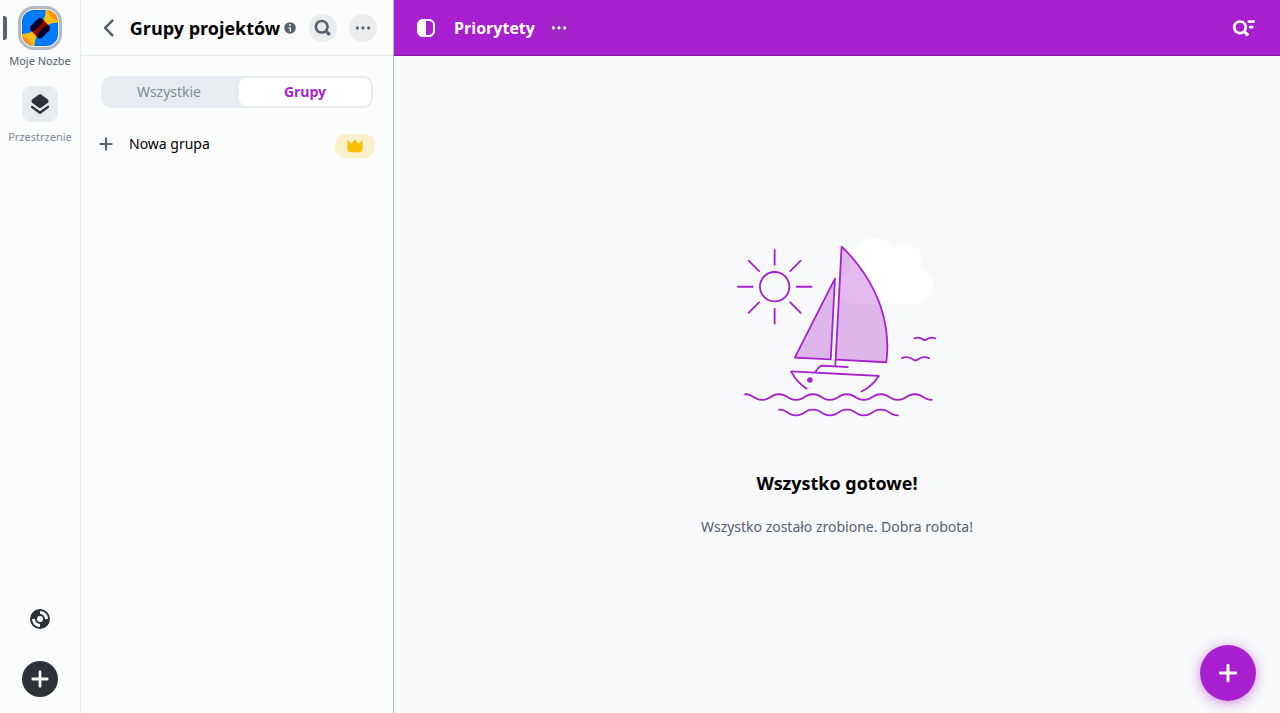
The Project groups view was empty too. The “New group” item has a yellow crown, which marks a feature available only in the paid plan. The tab itself works, but on a free account it stays empty.
The third screenshot shows Single tasks, that is tasks outside a project. Here too an empty state and one message: “Add your first task!”. The Active projects section in the sidebar has not a single item.
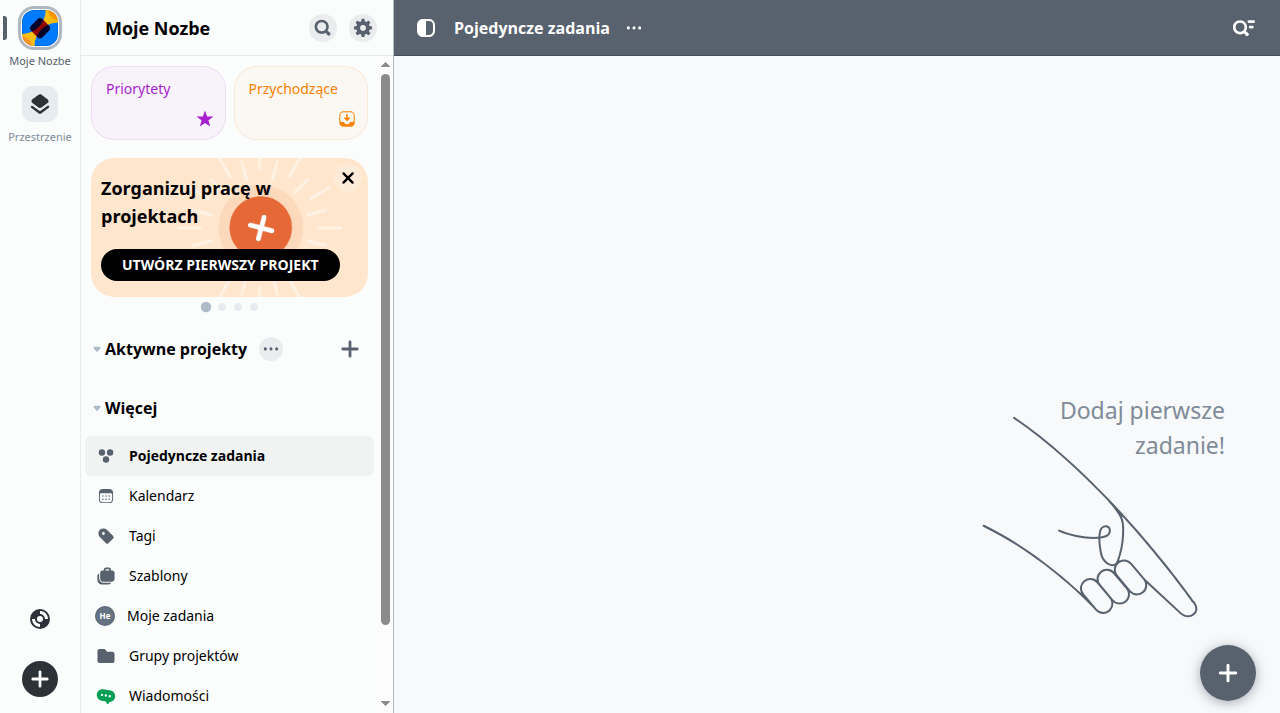
From these three screens you can see how Nozbe differs from Trello and Asana. This tool imposes a ritual: first collect everything in Incoming, then pick priorities for today, and projects are the background. If that ritual suits you, you do not need extensive views. If it does not, Nozbe will get in the way, because it cannot be used like a board.
Free plan limits
The Free plan costs zero zlotys forever and holds up to three users, three active projects and one space. Plus 500 MB of data with files up to 10 MB, three sections in a project, three tags and seven days of completed task history. Premium features, including project groups, are outside the free plan. The Premium plan is 27 PLN per user per month plus VAT.
Three projects is a limit that a design office usually passes in its second month of work. Three people, in turn, is a limit that lasts exactly until the first subcontractor comes on board.
Strengths: a clear priority ritual, a Polish interface and a Polish vendor, a low entry threshold, quick task entry from the keyboard.
Weaknesses: three projects and three people in the free plan, no timeline view, project groups in the paid plan, the empty state message is misleading.
Notion: a database instead of a board
Notion is not a project management tool, it is a tool for building tools. That is why a new account greets the user with the Welcome to Notion page, a tutorial in the form of a checklist. On the Hermes’s Space account both that page and the whole app interface were in English.
See Notion in action:
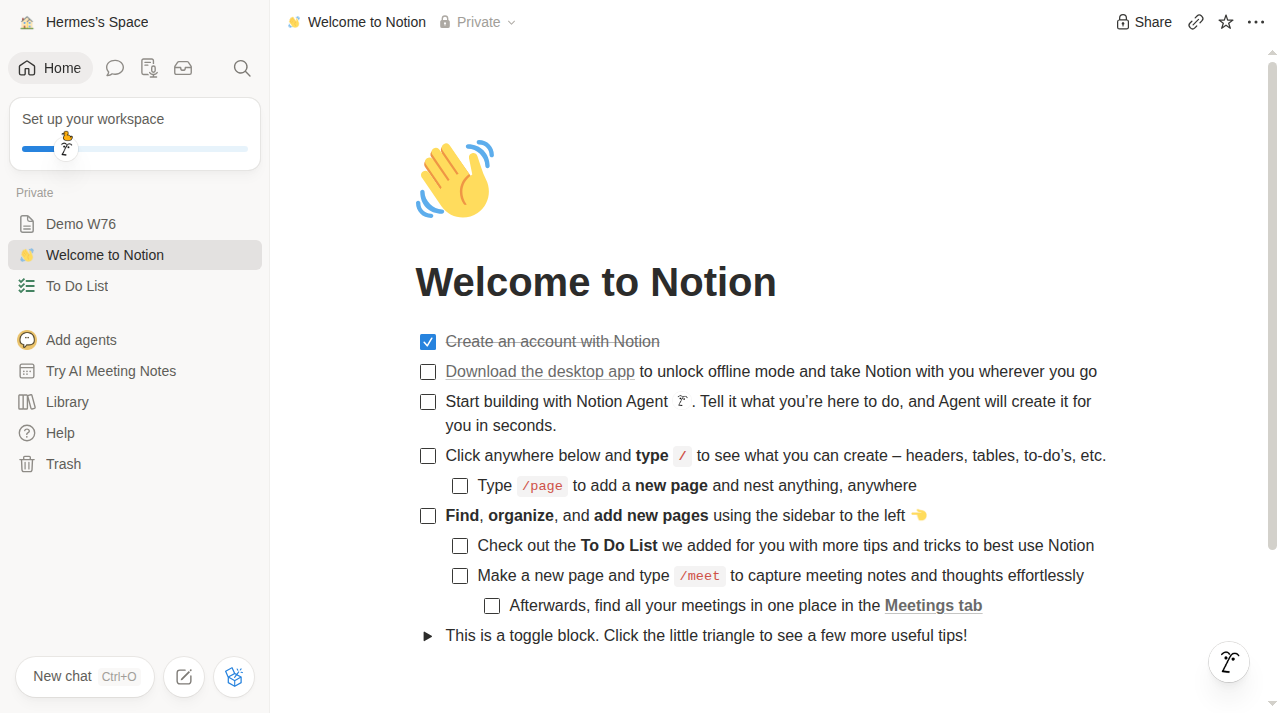
The checklist leads from creating an account and installing the desktop app, through building something with the Agent and typing a slash, to meeting notes. It is a good introduction to the editor and completely useless as an introduction to running a project.
The second page in the space is To Do List, that is a database. In list view it has seven sample rows and three properties: title, checkbox and date. Two views, To Do and Done, split tasks into open and closed.
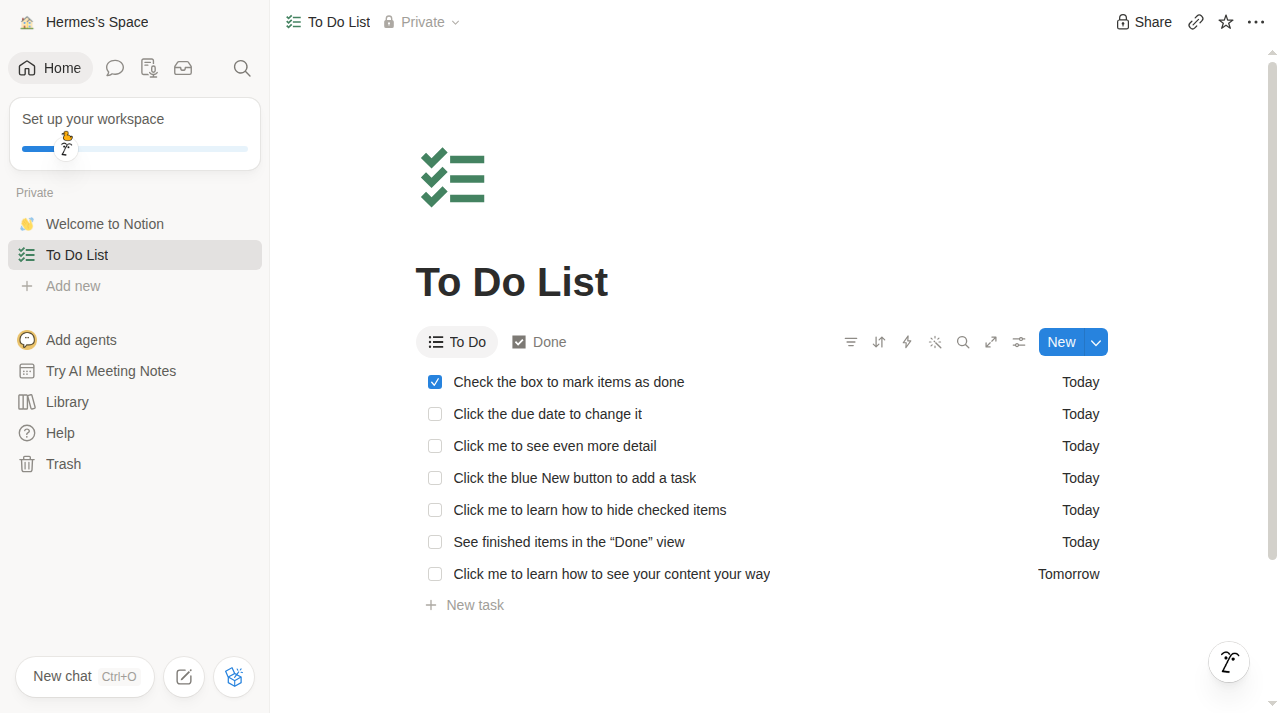
And that is the crux of the matter. In Trello, Asana and Nozbe a project is created by typing a name. In Notion you first have to design the database: decide which properties will be needed, which views, which filters and who has the right to edit. Only then can you enter the first task. For a design office that can be an advantage, because the structure is matched to your own process, but it is also work that nobody will do for the user.
The free plan includes what matters most in Notion: databases with subtasks, dependencies and custom properties, Notion Calendar, basic forms and pages, and a trial of the AI assistant. The Plus plan at 9.50 euros per member per month adds unlimited charts, collaboration blocks and file uploads. The Business plan at 19.50 euros adds the Agent, meeting notes and database level permissions.
Strengths: the greatest flexibility, documentation and tasks in one place, databases with dependencies already in the free plan, one subscription instead of three tools.
Weaknesses: no ready project model, so you have to design one, it is easy to build a system the team will not use, no ritual like in Nozbe, default materials in English.
Comparison table
The numbers below come from the pricing pages of the individual tools, checked on the day of writing, and from the app screens. I give the prices of paid plans in the currency the vendor uses.
| Tool | Working model | Views in the free plan | People limit | First paid plan |
|---|---|---|---|---|
| Trello | board, lists, cards | board and list, calendar and timeline from Premium | 10 collaborators | Standard 5 USD per person per month annually |
| Asana | workspace, project, sections, tasks | list, board, calendar, timeline from Starter | 2 users | Starter 10.99 USD per person per month annually |
| Nozbe | priorities, projects, contexts | priority list and calendar, no timeline | 3 users, 3 projects | Premium 27 PLN per person per month plus VAT |
| Notion | pages and databases | database views: list, board, calendar, timeline | no people limit in the free plan | Plus 9.50 EUR per member per month |
Two numbers in this table are worth remembering. Asana gives two people in the free plan, and Nozbe three projects. These are not minor limitations, they are limits that a design office passes in the first month of work.
Which tool for whom
Instead of saying that everything depends on needs, I suggest four concrete situations.
- Trello for one to three people who run short projects and do not need to report progress. A board takes a quarter of an hour to set up, and with ten people in the free plan the people limit does not get in the way.
- Asana for a team of four people or more that runs several projects in parallel and needs dependencies and a timeline. You then have to set up the Starter plan, because the free one ends at two people.
- Nozbe for a person or a small team that wants a priority ritual and consciously gives up extensive views. Three projects in the free plan are enough if you close projects as you go.
- Notion for an office that wants a knowledge base and tasks in one place and has someone who will design the database structure. Without that person Notion will become a folder of notes.
Time measurement deserves a separate mention. None of these four tools answers the question of how many hours a project really absorbed. That needs a separate measurement layer, for example Toggl Track, and I do not treat it as a competitor to the apps listed, only as their complement.
What to start with on Monday
The most common mistake when choosing a tool is testing it on a project that has already finished. The result of such a test says nothing, because there is no deadline pressure. I suggest otherwise.
Take one project that is running now and put three lists into it: to do, in progress, done. Add five tasks with real deadlines and assign them to the people who will actually do them. Run it like that for one week and write down two numbers: how many times someone had to ask what to do, and how many tasks changed their deadline. After a week you will know whether you need views, automations and limits, or a board is enough.
If after that week it turns out that you are missing a timeline, check whether the tool you already have does not have one in a higher plan before you change the whole tool. In two of the four tools described here it is precisely the schedule view that you have to pay for.
This comparison is an update of a 2024 post. The previous version, describing the plans and prices of that time, was published as Project management software, and it is worth reading as a reference point: some names and limits have changed since.
Check also:
- Task Cost Measurement: The Tool Report Is Not an Invoice
- Comfort at the Computer: An Ergonomic Workstation Step by Step
- Chinese AI Models: What Happens to the Data You Send Them
- Many Mailboxes in One System: Thunderbird and AI
- What Computer for Revit and BIM in 2026: CPU, GPU, RAM and SSD
This article was created with the help of artificial intelligence.